 Features / Board Tools
Templates
Overview
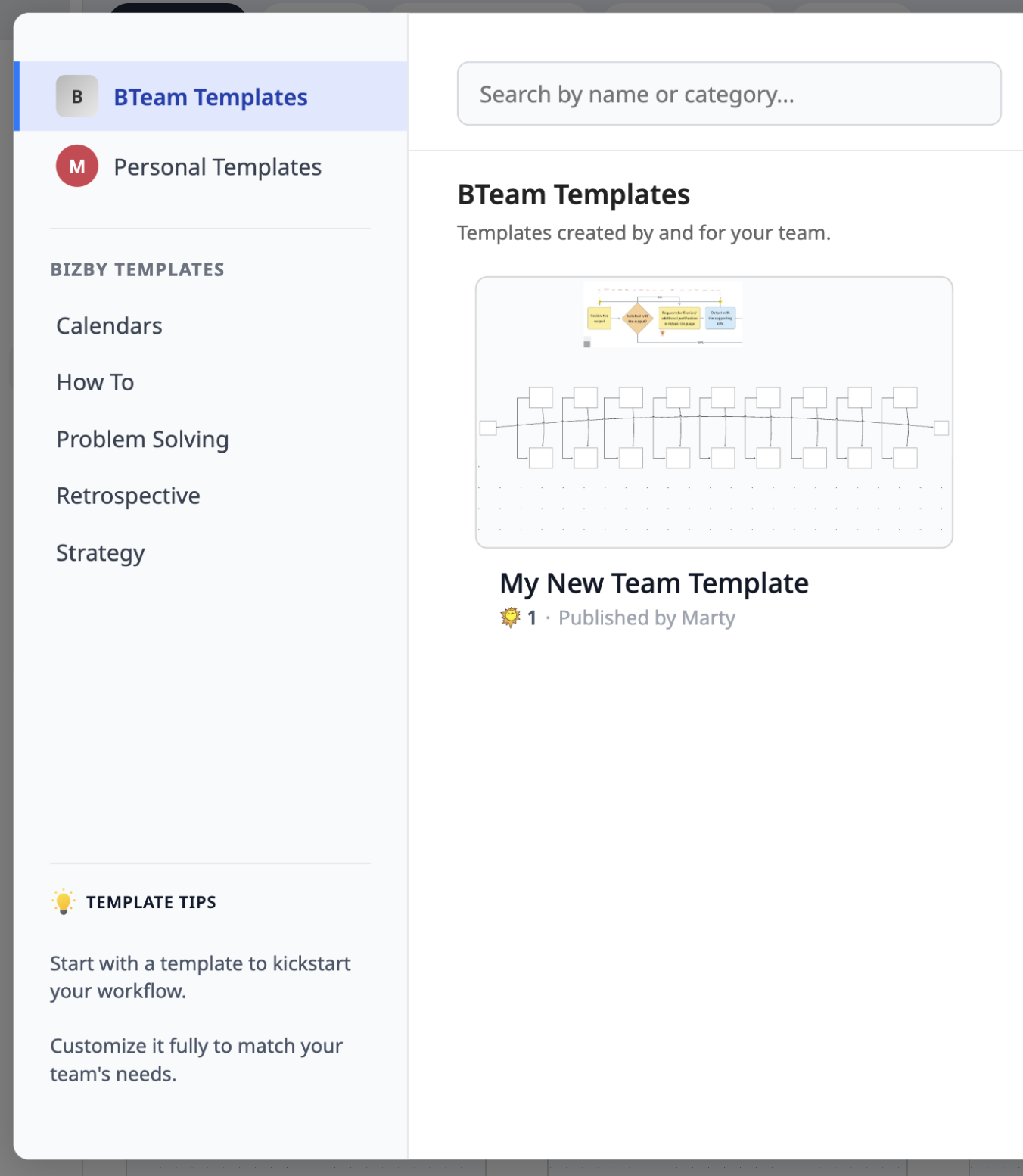
Section titled “Overview”Bizby offers a library of pre-built templates to help you get started quickly. Browse templates by category, preview them, and either start a new board from a template or insert template content into an existing board. On a paid plan you can also publish your own templates — for yourself or for your whole team — and reuse them anywhere you pick a template.
Key Features
Section titled “Key Features”- Template Library — Browse categorized templates for common use cases
- Preview — See template content before using it
- New Board from Template — Start a fresh board with template content pre-loaded
- Insert into Board — Add template content to an existing board without replacing current content
- Personal & Team Templates — Publish any board as a template, just for you or for your whole team
Publish Your Own Templates
Section titled “Publish Your Own Templates”On a paid plan, turn any board into a reusable template. Open the board’s main menu and choose Publish Template…, then pick where it lives:
- Personal — only you can see and use it
- Team — everyone on your team can use it (publishing and managing team templates is limited to team owners and admins)
Give it a name and, optionally, a short description using the guided sections (About, What’s Inside, When to Use It, and more) — Bizby formats them into a clean preview automatically. Your new template appears in the picker under your Personal or team tab, each marked with its own avatar.
Manage Your Templates
Section titled “Manage Your Templates”From the Personal or Team tab in the template picker:
- Edit — rename a template or update its description
- Update from a board — re-publish from a board to refresh a template’s contents (choose “Update an existing template” in the Publish dialog)
- Star — owners and admins can star team templates to pin them to the top of the Team tab
- Delete — remove a template you no longer need
- Usage count — each card shows how many boards have been created from it
How to Use
Section titled “How to Use”Start from Template
Section titled “Start from Template”- From the dashboard, click New Board
- Browse or search the template library
- Click a template to preview it
- Click Use Template to create a new board with the template content
Insert into Existing Board
Section titled “Insert into Existing Board”- Open a board and access the template library from the toolbar
- Browse and select a template
- Template content is inserted onto your canvas alongside existing content
Publish a Template
Section titled “Publish a Template”- Open the board you want to save as a template
- From the main menu, choose Publish Template…
- Choose Personal or Team, add a name (and an optional description), then click Publish
- Find it later under the Personal or team tab when you start a new board or insert a template
Related Features
Section titled “Related Features”- Workspaces — Organize boards into workspaces
- Drawing Tools — Customize template content with all canvas tools
- Feature Overview — See all Bizby features