Running a Meeting
Bizby turns every meeting into a shared, interactive workspace. Present your slides, gather live input, and capture decisions all on one board in real time — no screen-share, no separate polling app, no scattered notes to chase down afterward. This guide walks through a meeting from setup to follow-up.
1. Set Up the Board
Section titled “1. Set Up the Board”Do this before people join so the meeting starts smoothly.
- Build your agenda as frames. Each frame becomes a slide in the slide show, so lay out one frame per agenda item — title slide, discussion topics, exercises, wrap-up. Name each frame so it’s easy to find later.
- Use standard frame sizes (16:9, A4, or Letter) for consistent slide dimensions.
- Drop in your content — sticky notes, diagrams, images, tables, or an imported PowerPoint/PDF.
2. Bring Everyone Together
Section titled “2. Bring Everyone Together”When people join, they land wherever they last were on the canvas. As the board owner you can pull everyone to the same place.
- Open the presence menu from the avatar chip in the top-right of the toolbar to see who’s on the board.
- Click Bring everyone to me to navigate all collaborators to your current view and page.
- Need only a subgroup? Select people with the checkboxes and click Bring N people to me — handy for breakout work without disrupting everyone else.
See Presence Menu for the full details.
3. Present Your Slides
Section titled “3. Present Your Slides”Turn your frames into a running slideshow.
- Open the Slide Show panel from the Board Tools menu.
- Drag frames to set the slide order.
- Click Start Presentation to enter focus mode — a clean, full-screen view with the UI hidden. Starting the presentation instantly invites everyone on the board to follow the presenter.
- Move through slides using the on-screen controls.
More in Presentation Mode.
4. Let People Follow Along
Section titled “4. Let People Follow Along”Attendees don’t have to be presenting to stay in sync.
- Double-click anyone’s name in the presence menu — or hover their name and click the eye icon — to follow their cursor in real time.
- Click a name to jump to where that person is working.
- When someone starts a presentation, everyone is invited to follow the presenter automatically.
5. Gather Input and Keep Energy Up
Section titled “5. Gather Input and Keep Energy Up”Make the meeting participatory instead of a one-way presentation.
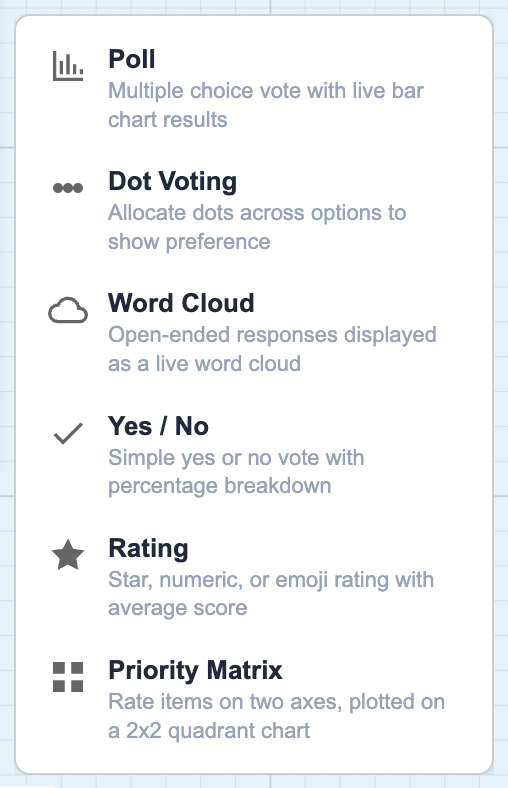
- Interactive Questions — post a question on the board and have the room answer live from their phones via a QR code or link:
- Word Cloud — open-ended answers form a live word cloud
- Yes/No — a quick binary read of the room
- Rating — scale ratings with a running average
- Priority Matrix — plot initiatives on a 2×2, e.g. Effort vs Impact
- Polls and Dot Voting — gather instant opinions and prioritize as a group.
- Sticky-Note Reactions — react to sticky notes for quick pulse checks and lightweight feedback.
- Timer — timebox discussions, exercises, and breaks so the meeting stays on schedule.
6. Capture Decisions and Action Items
Section titled “6. Capture Decisions and Action Items”Don’t let outcomes get lost when the meeting ends.
- Comments — pin a comment anywhere on the board to note a decision or question. Type
@to mention a teammate and send them an email notification with a link straight back to the comment. - Decision Notes — capture a decision along with its next steps and action items in one structured note.
7. After the Meeting
Section titled “7. After the Meeting”The board stays live, so follow-up is easy.
- The board is the record — decisions, notes, and action items are all in one place for anyone who missed the meeting.
- Save a named version with Board Version Control to snapshot the board as it stood at the end.
- Mentioned teammates already have an email link back to their comments and action items.
Key Features for Meetings
Section titled “Key Features for Meetings”- Slide Show / Presentation Mode — present frames as slides in focus mode
- Presence Menu — see who’s on the board, follow people, and bring everyone to your view
- Interactive Questions — word cloud, yes/no, rating, and priority matrix answered live from phones
- Polls, Dot Voting & Reactions — gather input and keep everyone engaged
- Timer — keep the meeting on schedule
- Comments & @-mentions — capture decisions and notify the right people
- Decision Notes — record decisions with their action items
Get Started
Section titled “Get Started”Ready to run your next meeting on a board? Start your free trial or explore our templates.