 Features / Notes & Content
Sticky Note Reactions
Overview
Section titled “Overview”Sticky Note Reactions bring emoji-based feedback to your collaborative whiteboard. Team members can quickly react to sticky notes with emojis, making it easy to vote on ideas, show agreement, or provide instant feedback without adding clutter to your board.
Key Features
Section titled “Key Features”- Emoji Reactions - Add emoji reactions to any sticky note
- Multiple Reactions - Support for various emoji reactions per note
- Real-time Updates - See reactions appear instantly in collaborative sessions
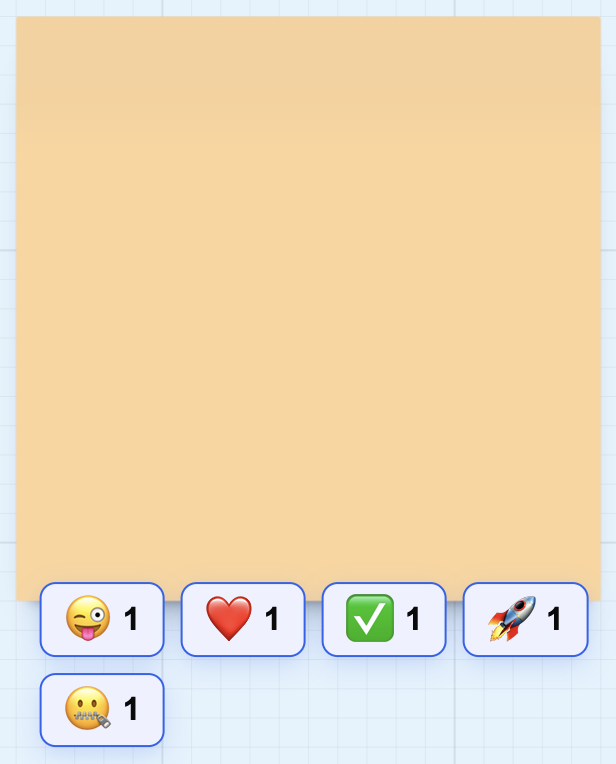
- Reaction Counts - View how many people reacted with each emoji
- Quick Feedback - Provide feedback without writing comments
How to Use
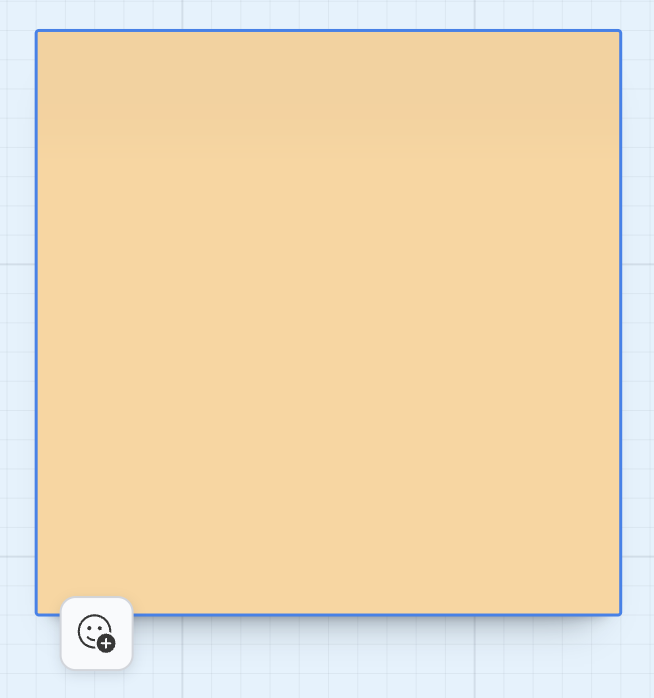
Section titled “How to Use”- Hover over any sticky note on your board
- Click the reaction button (emoji icon)
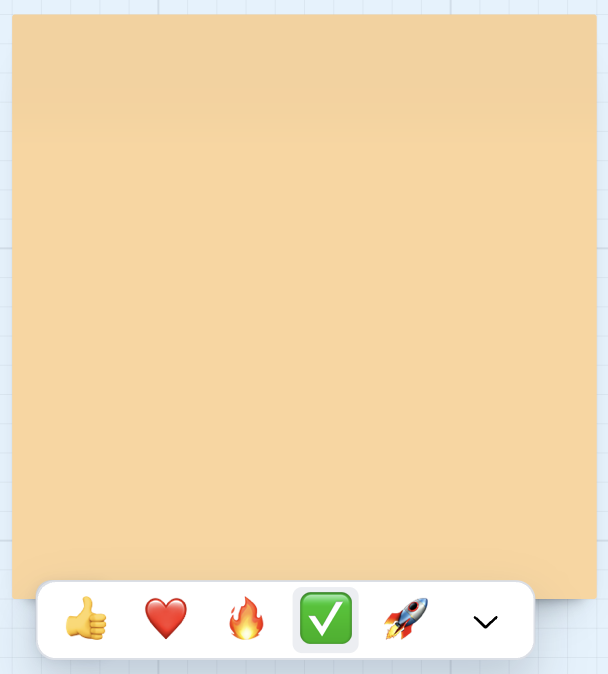
- Select an emoji from the reaction picker
- Your reaction appears on the sticky note
- Team members can see and add their own reactions
Accessing All Emojis
Section titled “Accessing All Emojis”The reaction picker displays a curated set of commonly-used emojis by default. To access the complete emoji library:
- Click the reaction button on any sticky note
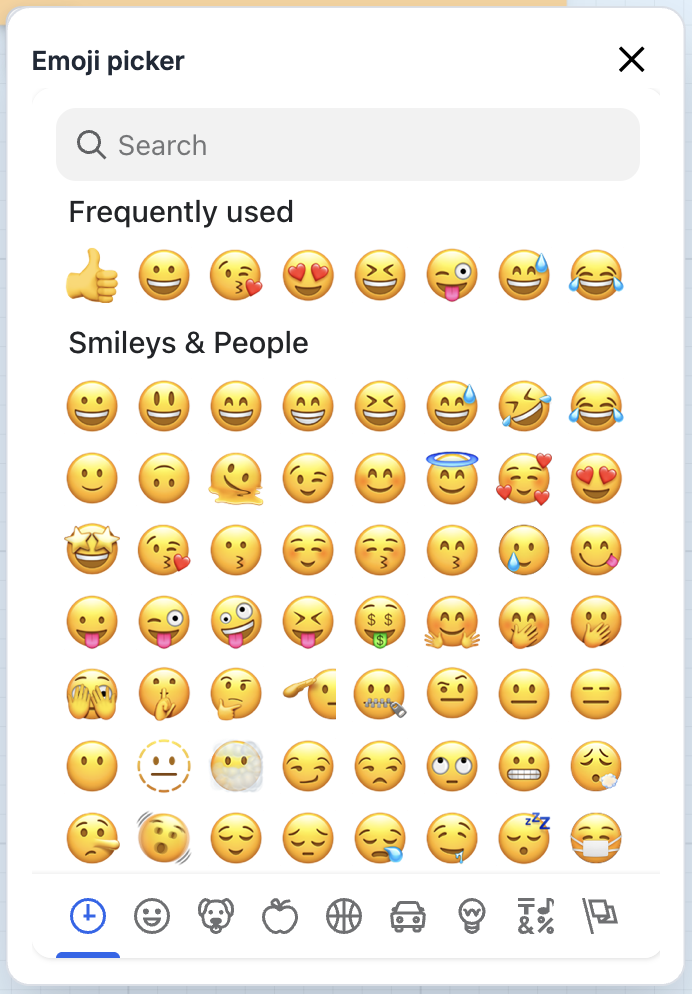
- Click the More button at the bottom of the reaction picker
- Browse or search through hundreds of available emojis
- Click any emoji to add it as a reaction
Benefits
Section titled “Benefits”Quick Voting
Section titled “Quick Voting”Use reactions for rapid voting on ideas. Team members can simply click on any existing reaction to add their vote, making it easy to build consensus quickly.
Reduce Clutter
Section titled “Reduce Clutter”Instead of creating new sticky notes to express agreement or feedback, use reactions to keep your board organized and clean.
Engagement Tracking
Section titled “Engagement Tracking”Quickly identify which ideas resonate most with your team by seeing reaction counts at a glance.
Asynchronous Feedback
Section titled “Asynchronous Feedback”Team members can provide feedback on their own time by reacting to notes, perfect for distributed teams across time zones.
Use Cases
Section titled “Use Cases”Brainstorming Sessions
Section titled “Brainstorming Sessions”Scenario: Team generating feature ideas
After the brainstorming session, team members use thumbs up reactions to vote on their favorite ideas. Ideas with the most reactions get prioritized for discussion.
Retrospectives
Section titled “Retrospectives”Scenario: Sprint retrospective
Team members add reactions to indicate things that went well, funny moments, and action items they want to own.
Design Reviews
Section titled “Design Reviews”Scenario: Reviewing design concepts
Designers share multiple concepts as sticky notes. Team members react to indicate “needs discussion”, “approved”, or “questions”.
Workshop Facilitation
Section titled “Workshop Facilitation”Scenario: Remote workshop with 20+ participants
Facilitator asks participants to react to sticky notes instead of unmuting. This keeps the session flowing smoothly while gathering input.
Best Practices
Section titled “Best Practices”Common Reaction Patterns
Section titled “Common Reaction Patterns”Voting Pattern:
- Thumbs up = Yes/Agree
- Thumbs down = No/Disagree
- Shrug = Neutral/Unsure
Priority Pattern:
- Fire = High priority
- Lightning = Medium priority
- Zzz = Low priority
Sentiment Pattern:
- Heart = Love it
- Smile = Like it
- Neutral = Neutral
- Confused = Concerns
Related Features
Section titled “Related Features”- Sticky Note Stacks - Create unlimited sticky notes quickly
- Bizby AI - Summarize sticky note content with AI
- Feature Overview - See all Bizby features