July 2026 Newsletter
Happy Canada Day weekend from the Bizby team! While the barbecues are going and the fireworks are still echoing, here’s what shipped this month. Three releases, and they share a theme: making Bizby fit the way your team works. The new Planner turns any board into a prioritization workshop, with a backlog intake and columns like Now / Next / Later or MoSCoW. You can now publish your own boards as reusable Personal or Team templates. And the canvas toolbar is fully customizable, so the tools you reach for most are always one click away.
The Planner is a workshop-style kanban you drop right onto the canvas: a pinned Backlog lane on the left for intake, and a row of custom columns for sorting work. Pick a starting layout (Now · Next · Later, NNL + KPIs, MoSCoW, Kanban, RICE, or Blank), then rename, recolor, reorder, add, or remove columns as you go.
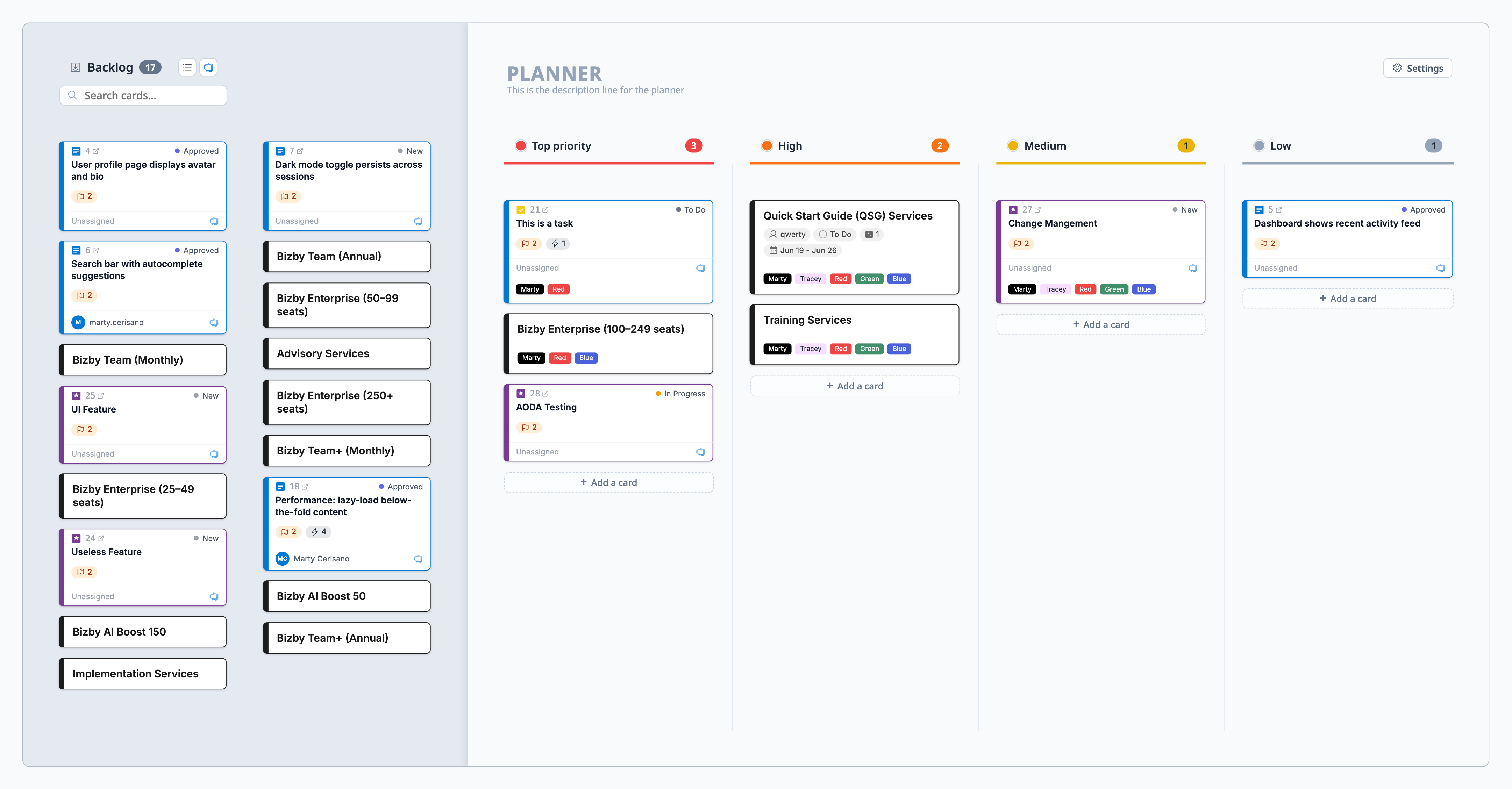
Add cards inline, drag them between columns and the backlog, and apply shared colored tags from the context toolbar. The backlog has a search box to filter cards, plus import buttons: paste a flat list, or import from Azure DevOps by iteration, shared query, assigned-to-me, or custom WIQL, filtered by work-item type and de-duplicated automatically.
Tip: Deleting a column never loses work. Its cards return to the backlog, and every column has a reset button that does the same thing on demand.
Turn any board into a reusable template. Open the board’s main menu, choose Publish Template, and pick where it lives: Personal (just you) or Team (everyone on your team, managed by owners and admins). Guided description sections format into a clean preview automatically.
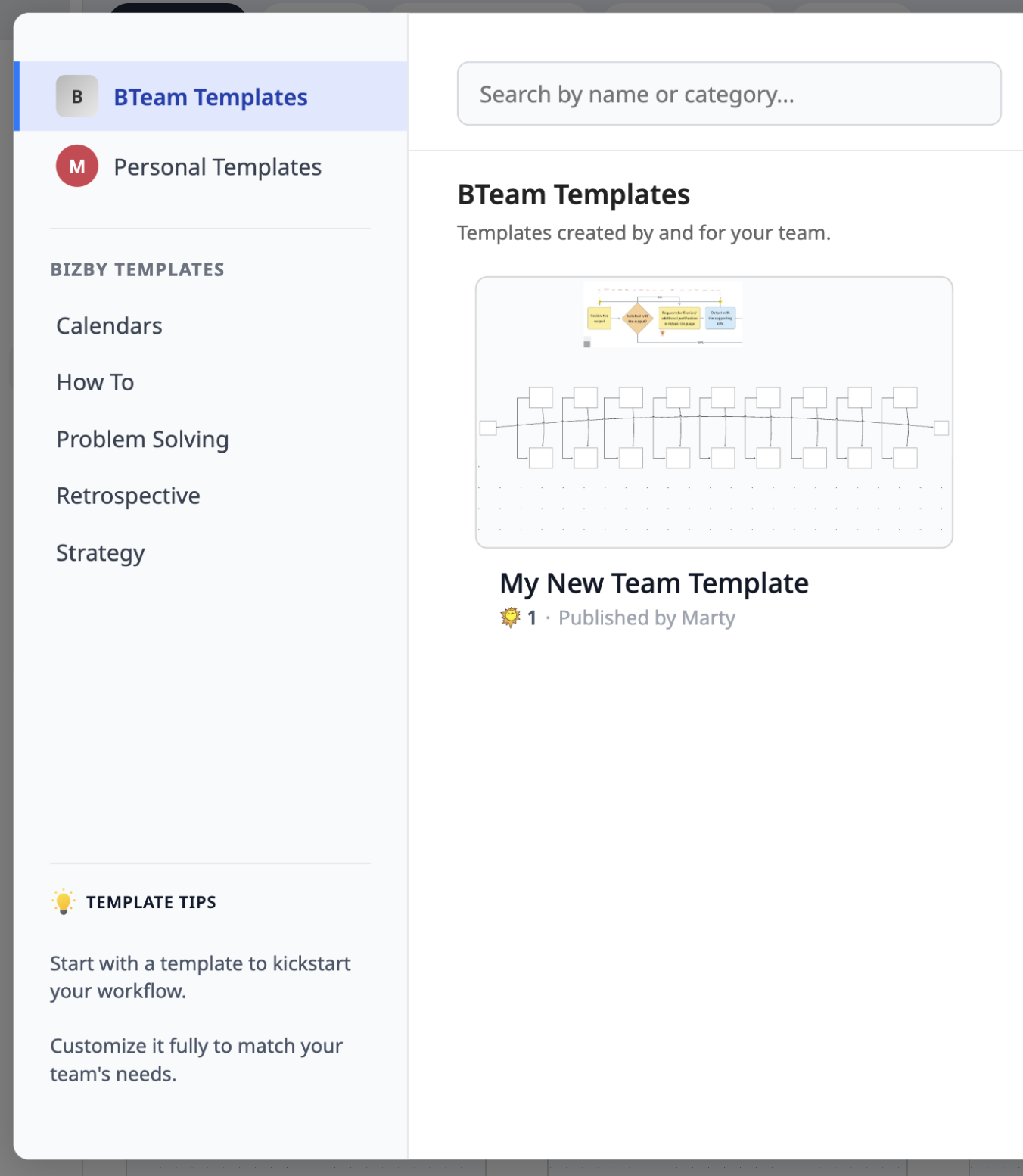
Your templates appear in the picker under their own avatar tab, alongside the built-in library. From there you can preview, use, edit, update a template from a board, star the canonical team ones to pin them to the top, and delete the ones you no longer need. Each card shows how many boards it has created.
Tip: Publishing your own templates is a paid feature. To refresh a template after a board evolves, choose “Update an existing template” in the Publish dialog.
Build the canvas toolbar around the tools you actually use. Click the + at the bottom of the toolbar to open the searchable tool picker, then pin tools onto the bar, drag to reorder them, and unpin the ones you don’t need. Your layout saves automatically and follows you across boards and devices.
The long-tail tools that used to live in the overflow menu (laser, highlight, line, card, document, calendar, comments, group interactions, icons, and more) are now first-class, pinnable buttons.
Tip: Changed your mind? Open the picker and choose Reset to default to restore the standard bar anytime. The Select tool always stays on the bar, so it can never be emptied.
Read the Customizable Toolbar docs →
See all monthly issues in the Newsletter archive, or browse the full release timeline in What’s New.