August 2026 Newsletter
Hello from the Bizby team! Three releases this month, and they share a theme: turning raw input into a working board faster. AI now drafts and summarizes your Planner, Meeting Import turns a transcript into cards and a brief, and Slide Layouts let you build a deck without ever leaving the canvas.
Go from a blank board to a working plan in seconds. The Planner now has Bizby AI built into the context toolbar, with two new actions.
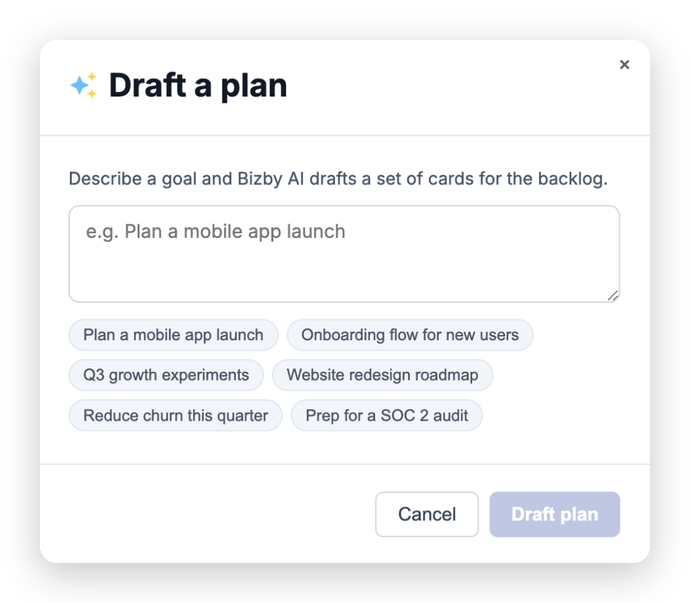
Draft a plan takes a goal like “Plan a mobile app launch” and drops a set of starter cards straight into your backlog. It reads the cards already on the board, so it builds on your work instead of repeating it. Summarize planner turns the current state of a planner into an editable document beside it, with a short overview, a per-column status list, and any risks and next steps. Because the result is a Bizby document, you can edit and format it right on the board, so it is ready for standups and stakeholder updates.
Also new: Imported backlog cards wear a New badge until you move or open them, every planner has a title you can rename on the canvas, and columns can wash in a single shared color or each column’s own.
Turn a meeting transcript into a working board. Paste in a Teams, Google Meet, or Zoom transcript, and Bizby AI reads the whole conversation for you.
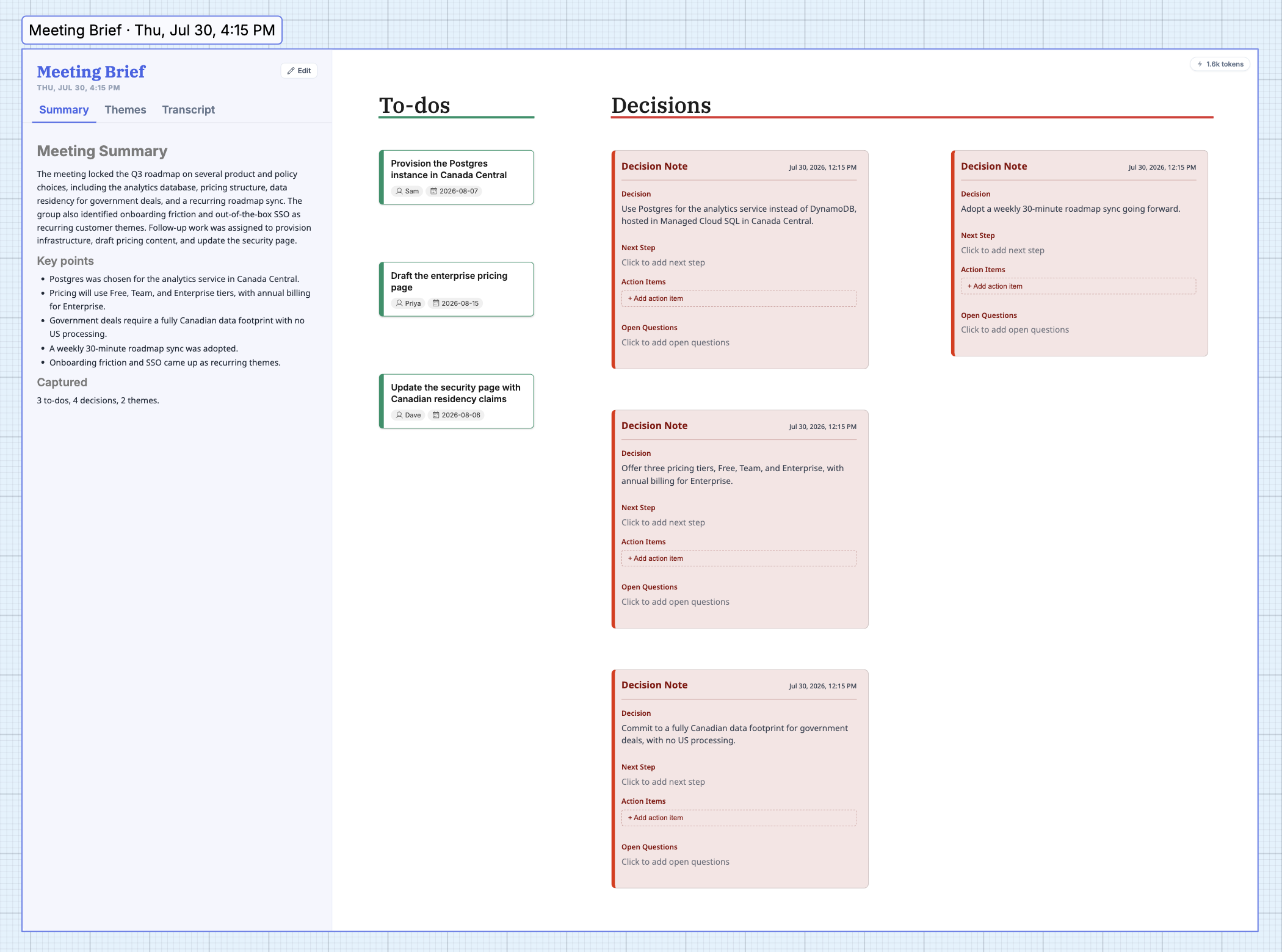
Open the Group Interactions menu, choose Meeting, and paste the transcript or upload the .txt or .vtt file. Tick the sections you want and hit Generate board. To-dos and decisions become editable cards with owners and due dates, themes and the full transcript become documents, and a Meeting Brief panel carries the summary with tabs for Summary, Themes, and Transcript, all inside one tidy Meeting frame.
Tip: No bot joins your call and no audio ever reaches Bizby. You bring the words, Bizby does the reading. Meeting Import is a Team+ feature that runs on your team’s AI credits, and any to-do can be dragged onto a Planner to turn talk into tracked work.
Read the Meeting Import docs →
Build a deck without ever leaving the board. The Frame tool now drops ready-to-edit, PowerPoint-style 16:9 slides onto the canvas, already styled.
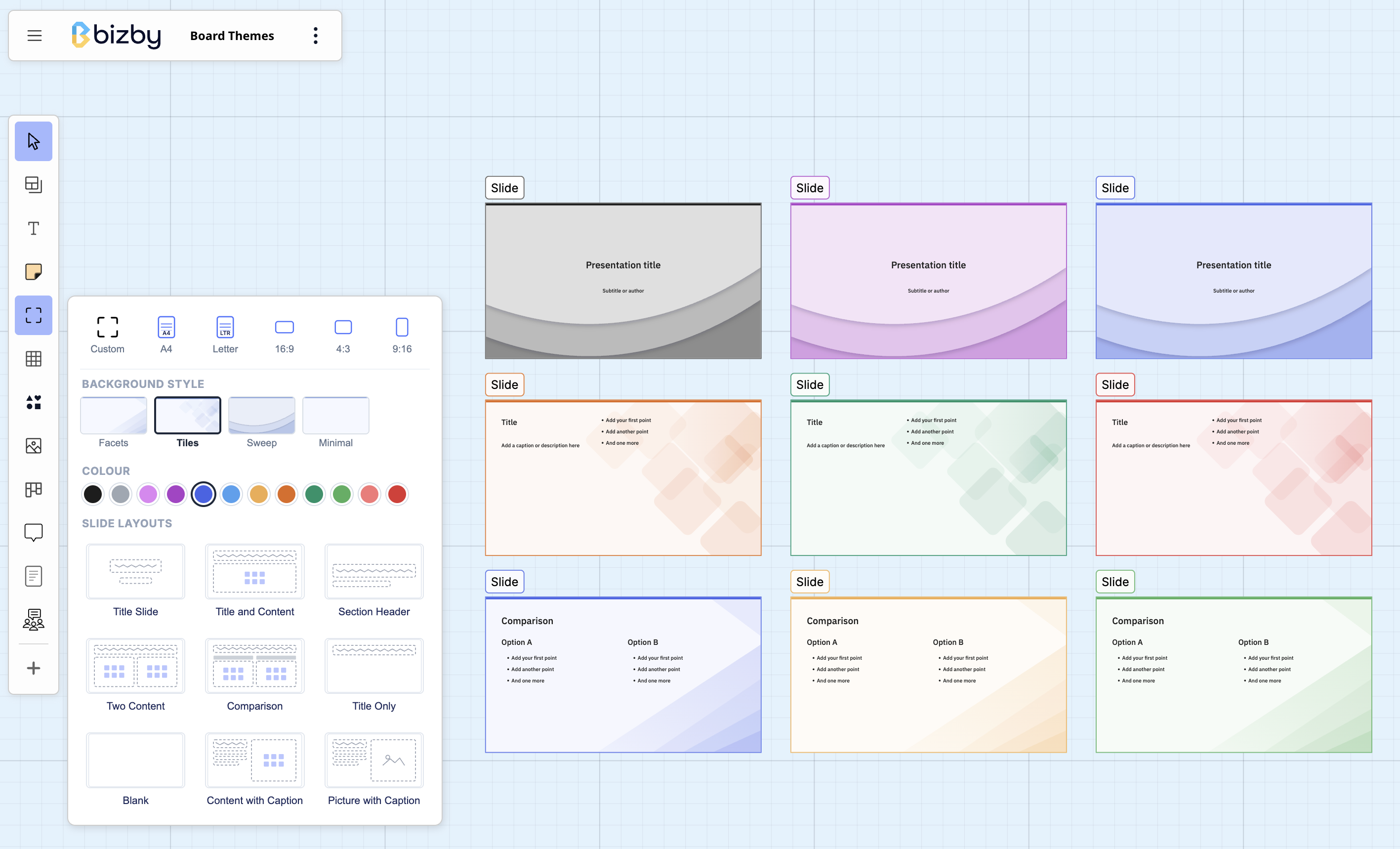
Open the Frame tool and make three picks: a background style (Facets, Tiles, Sweep, or Minimal), a color that sets the accent and tint, and a layout from a gallery that mirrors PowerPoint’s, including Title Slide, Title and Content, Section Header, Two Content, Comparison, Content with Caption, and Picture with Caption. Everything on a slide is a normal, editable text object, so you click in and type, and recoloring a slide re-themes the whole background to match.
Tip: Slide frames work with the Slideshow, so a row of slide layouts becomes a deck you can run start to finish, no export required.
See all monthly issues in the Newsletter archive, or browse the full release timeline in What’s New.