June 2026 Newsletter
Three releases this month, starting with one we’re excited to share: Bizby boards can now become interactive prototypes. Build a mobile flow on the canvas, wire the screens together, and play it back in a real device frame, no separate tool needed. We’ve also connected Bizby to Azure DevOps, so your work items live on the board as roadmaps you can edit and sync both ways, and added 20 Visio-style flowchart shapes for mapping any process.
Interactive prototyping is here as Beta 1. Turn boards into clickable, playable prototypes without leaving the canvas: drop a Prototype frame, enter Design mode for a focused workspace, drag UI-kit components onto device screens, and draw arrows between screens to wire transitions.
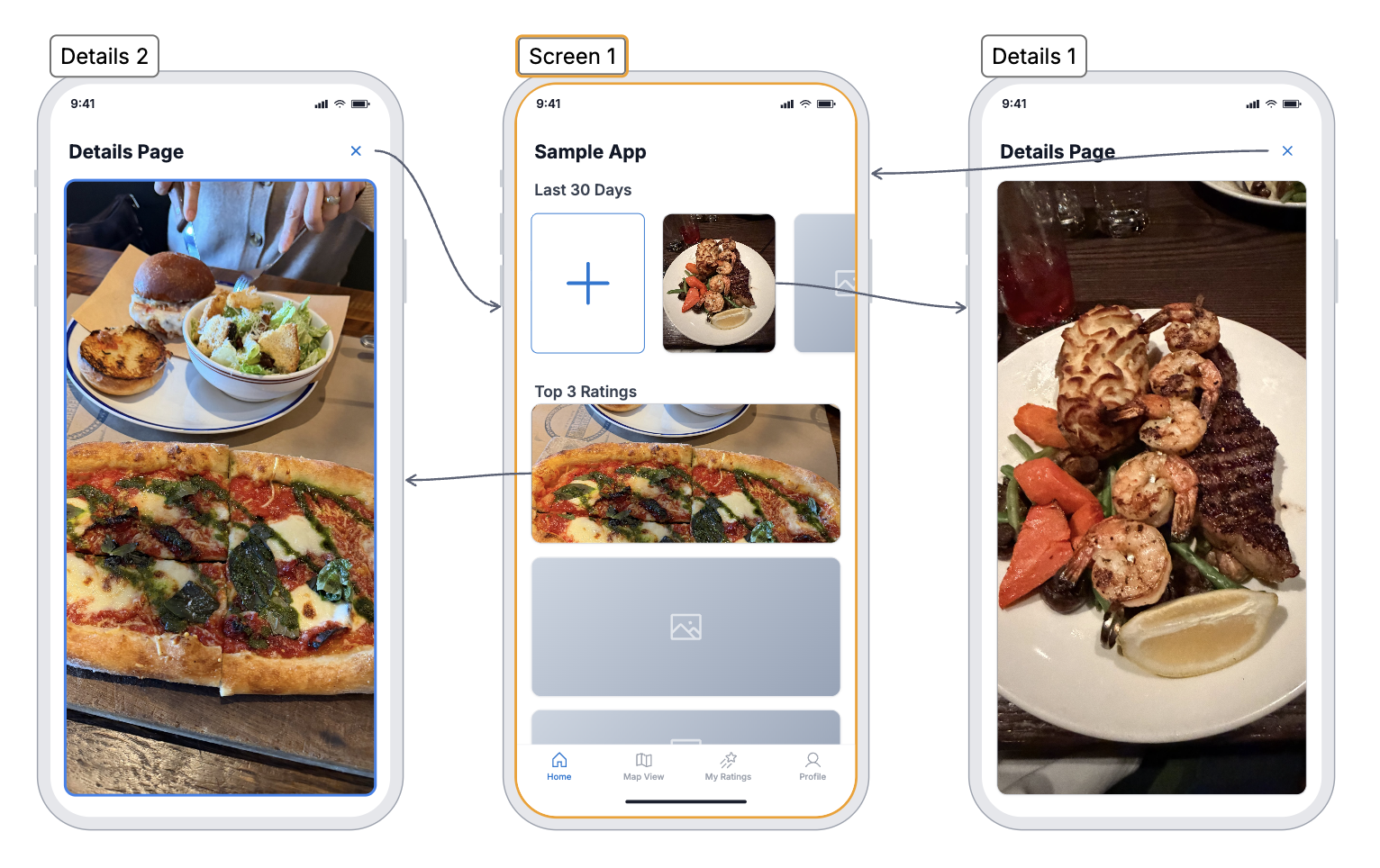
Add a Mobile screen, drag any component (buttons, inputs, nav bars, lists, segmented controls) from the Components tab, then hover a component to expose its binding port and drag onto another screen to link them. Pick a transition: Instant, Fade, Slide L, or Slide R. Hit Preview to play it in a real device frame.
Tip: Design mode is local to you, so collaborators on the same board keep working at the prototype’s real size. Included free on every plan during the beta; everything you build keeps working at GA.
Bring your Azure DevOps work items onto the canvas as roadmaps, link Bizby cards to live ADO items, and push edits back without leaving the board. The integration uses Entra ID OAuth, so each person signs in with their own Microsoft identity and only ever uses their own ADO permissions.
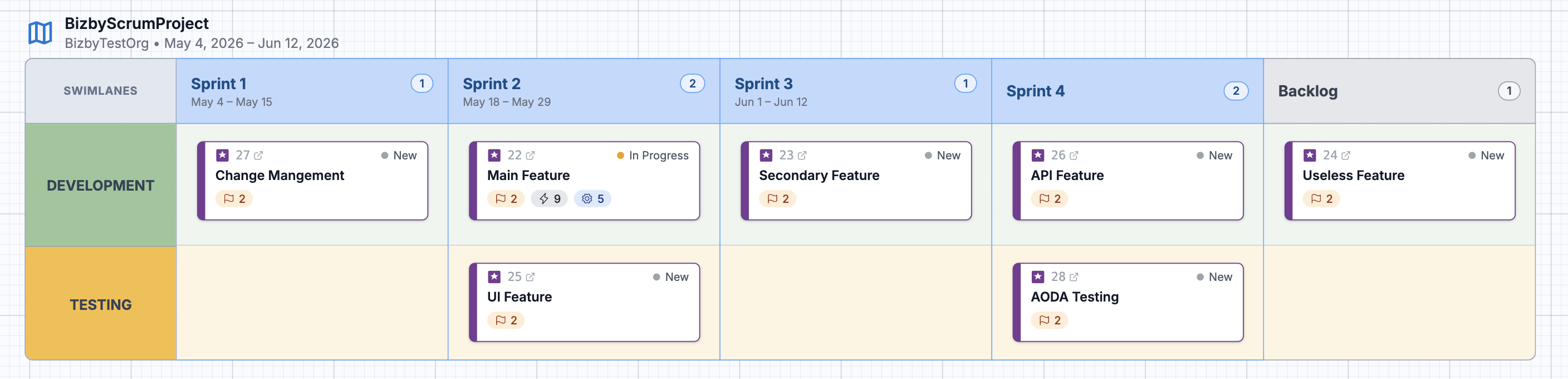
Every card now also has Notes and Tasks tabs for Bizby-only annotations that never push to ADO. Assign a task and the assignee gets an email with a deep link back to the card. You can even create a roadmap as read-only to lock ADO writes while keeping Notes and Tasks editable.
Tip: Azure DevOps Services (cloud) only, currently in Beta. Tokens are encrypted, and Bizby never touches your source code, pipelines, builds, or secrets.
A new Process tab in the shapes menu adds 20 Visio-style flowchart shapes (Process, Decision, Terminator, Document, Data, Database, Delay, Merge, and more) for process diagrams, workflow maps, and system sketches. They live alongside the basic shapes and behave like any other shape on the canvas.
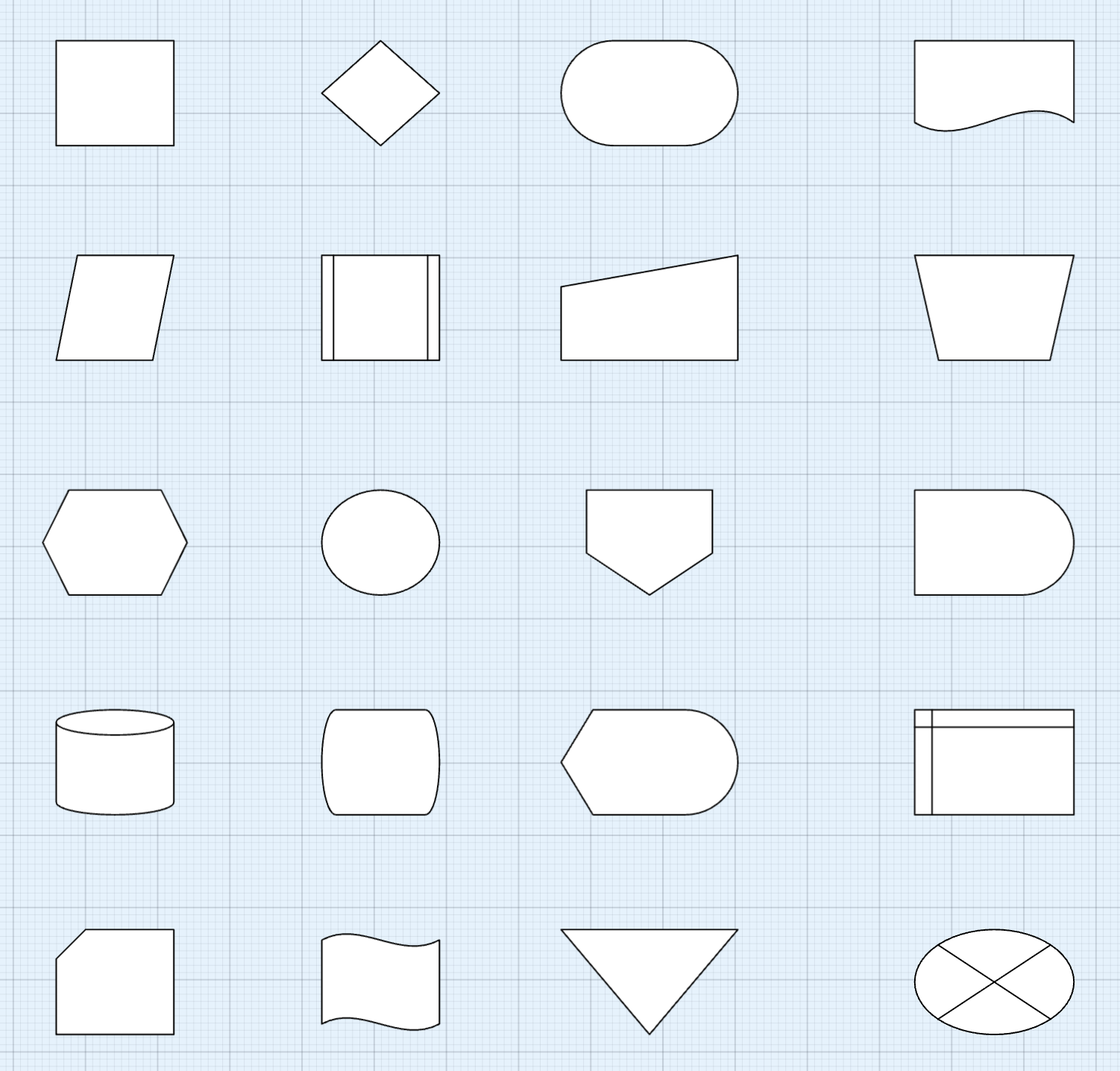
Open the Shapes menu, switch to the Process tab, pick a shape, and drag to draw. All the standard controls apply (color, fill, dash, opacity, inline text, resize, rotate), and connectors snap to process shapes just like basic ones.
Tip: Select a process shape and use the context-toolbar dropdown to convert it to a different one in place, swapping a Process for a Decision without redrawing or losing your styling.
Read the Process Shapes docs →
See all monthly issues in the Newsletter archive, or browse the full release timeline in What’s New.