Process Shapes
Bizby includes a set of 20 Visio-style flowchart shapes designed for process diagrams, workflow maps, and system architecture sketches. Process shapes live alongside the basic shapes in the shapes menu, share the same styling controls, and behave like any other shape on the canvas.
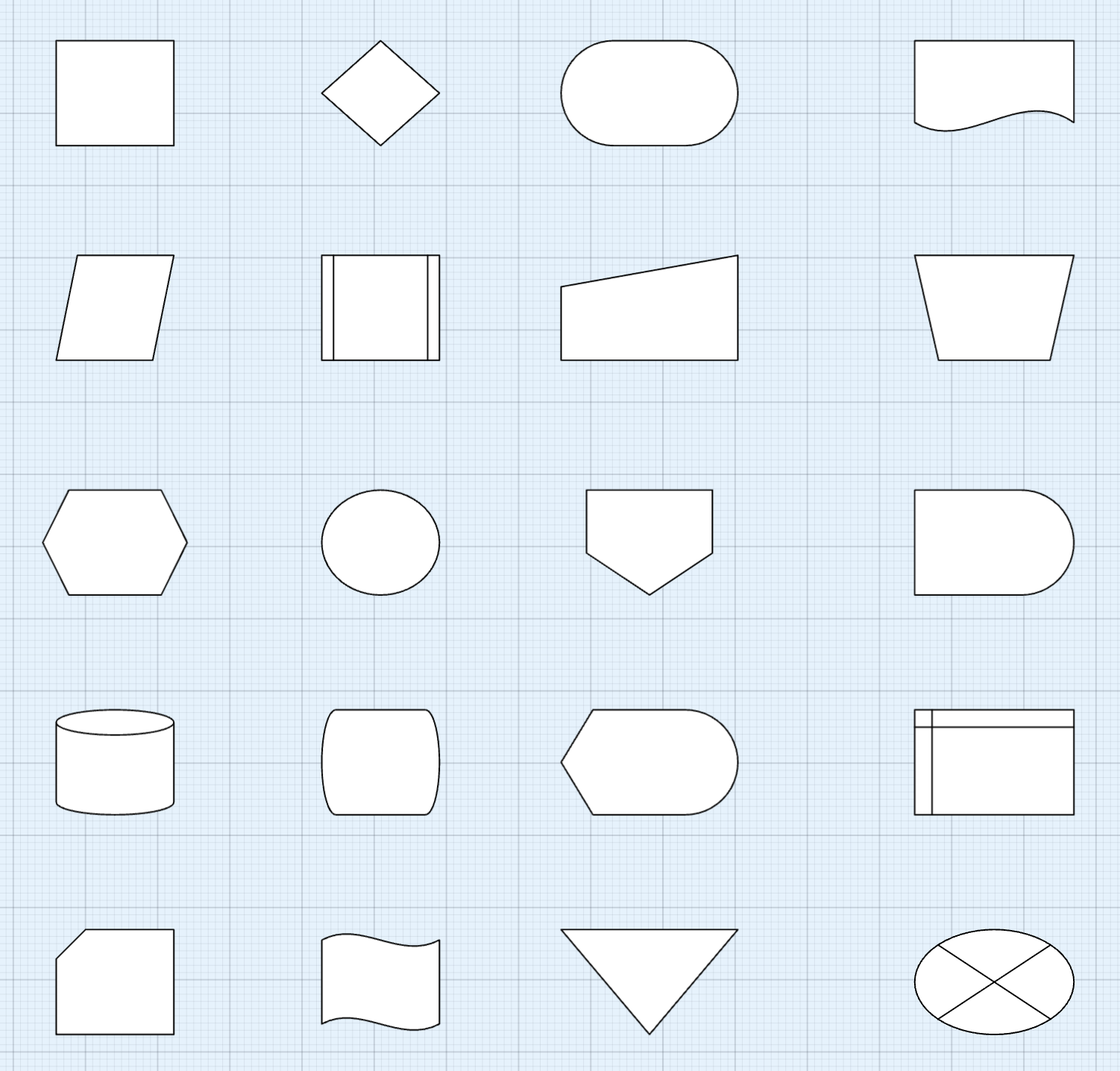
Available Shapes
Section titled “Available Shapes”The Process tab in the shapes menu includes the standard ANSI/ISO flowchart set:
- Process — Generic step or operation
- Decision — Branch point with yes/no or multi-way outcomes
- Terminator — Start or end of a flow
- Document — Output that produces a document
- Data — Input or output data (parallelogram)
- Predefined Process — Subroutine or referenced procedure
- Manual Input — User-entered data
- Manual Operation — A step performed by a person, not automation
- Preparation — Setup or initialization step (horizontal hexagon)
- Connector — Junction or flow continuation point
- Off-Page Connector — Continuation onto another page or sheet
- Delay — Waiting period or queue
- Database — Persistent data store (cylinder)
- Stored Data — Generic storage
- Display — Output to a screen or display surface
- Internal Storage — Memory or in-process storage
- Card — Punch card or token (rectangle with corner notch)
- Punched Tape — Legacy input/output medium
- Merge — Combining flows (downward triangle)
- Summing Junction — Logical operator junction (circle with X)
How to Use
Section titled “How to Use”- Open the Shapes menu from the toolbar (the chevron next to the geo shape button).
- Switch to the Process tab at the top of the shape grid.
- Click any shape; it becomes the active tool.
- Drag on the canvas to draw it.
Once you’ve picked a process shape, the toolbar’s geo button shows it as the active selection — click it (or hit the R-equivalent for the current shape) to keep drawing the same one. Pressing R at any time falls back to a plain rectangle.
Editing in Place
Section titled “Editing in Place”Select any process shape and the context toolbar’s shape dropdown lets you convert it to a different process shape without redrawing. The dropdown shows only process shapes when you have a process shape selected (and only basic shapes when a basic shape is selected) so you stay in the same family.
All standard shape controls apply:
- Color, fill, dash, opacity from the context toolbar
- Inline text labels — click into the shape and type
- Resize and rotate from selection handles
- Connectors snap to process shapes the same way they snap to basic shapes
Related Features
Section titled “Related Features”- Feature Overview — All Bizby features
- Sticky Note Stacks — Build flowcharts with sticky note inputs
- Card Component — Work items with title, status, assignee, and rich-text descriptions