 Features / Notes & Content
Sticky Note Stacks
Overview
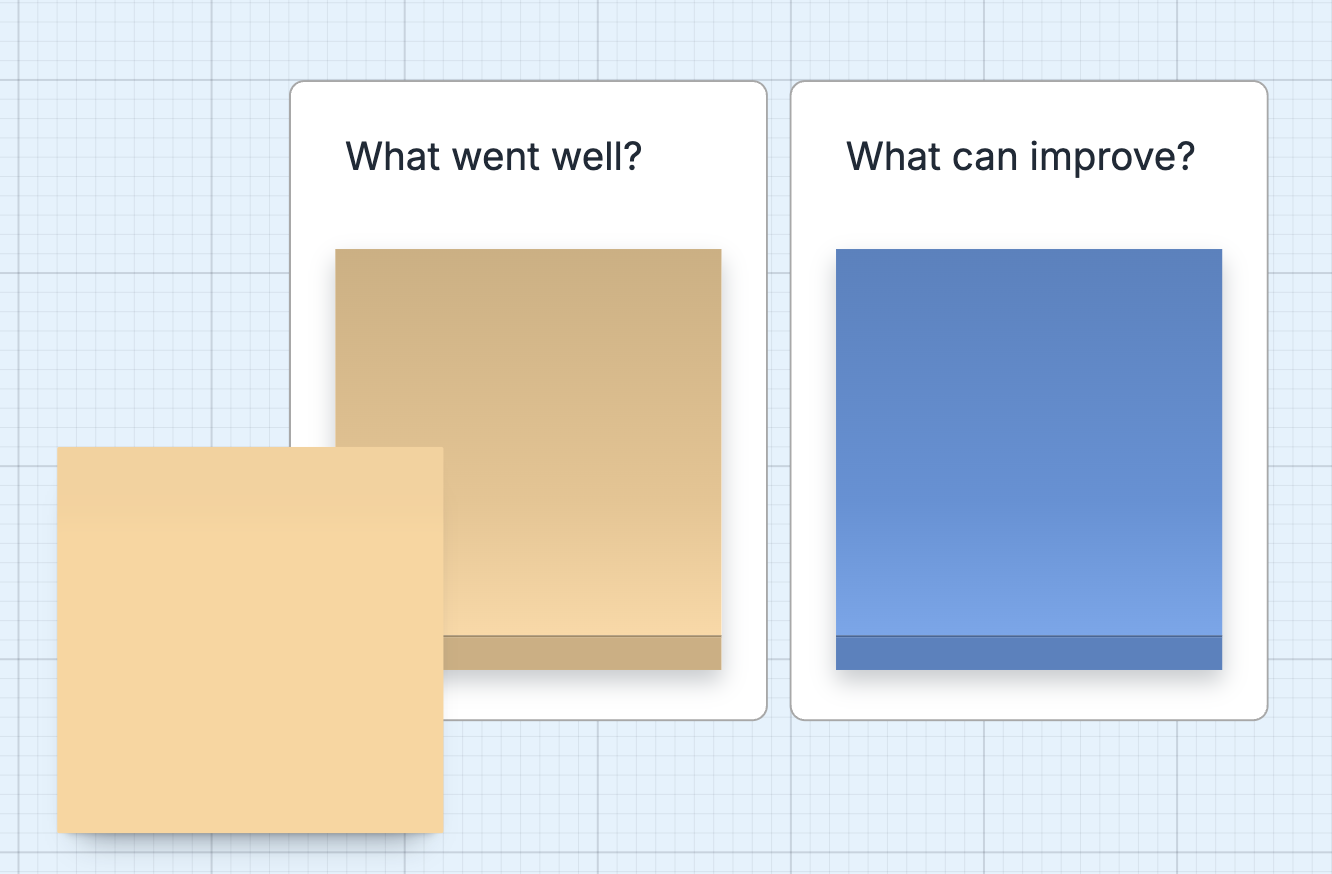
Section titled “Overview”Sticky Note Stacks revolutionize how you capture ideas during brainstorming sessions. Instead of clicking the sticky note tool repeatedly, create a stack once and pull unlimited notes from it. This feature dramatically speeds up ideation sessions and keeps your creative flow uninterrupted.
Key Features
Section titled “Key Features”- Unlimited Notes - Pull as many sticky notes as you need from a single stack
- Quick Access - Stack stays on your board for instant note creation
- Color Customization - Choose from all available sticky note colors
- Editable Label - Customize the stack label to organize different note types
- Drag and Drop - Simply drag notes from the stack to your board
- Persistent Stack - Stack remains until you delete it
- Resize Freely - Stacks can be sized down to about half the default width and scale all the way up; the preview text grows with the stack so it always reads at the size the actual sticky will render at
How to Use
Section titled “How to Use”- Click the Notes button in the main toolbar
- Select Sticky Stack from the dropdown
- Click on your board to place the stack
- (Optional) Click on the stack label to edit and customize it
- Drag notes from the stack onto your board
- Each note you pull creates a new sticky note
- The stack never runs out - create as many notes as you need
Benefits
Section titled “Benefits”Faster Brainstorming
Section titled “Faster Brainstorming”Traditional Method:
- Click sticky note tool
- Place note
- Click tool again
- Place another note
- Repeat 50+ times
With Stacks:
- Create stack once
- Drag, drag, drag
- Done!
Maintains Flow
Section titled “Maintains Flow”Keep your creative momentum by eliminating repetitive clicking. Focus on capturing ideas, not managing tools.
Perfect for Workshops
Section titled “Perfect for Workshops”When facilitating live workshops or remote sessions, sticky note stacks let you quickly capture participant ideas without workflow interruption.
Use Cases
Section titled “Use Cases”Brainstorming Sessions
Section titled “Brainstorming Sessions”Scenario: Team generating ideas for a new feature
Create a yellow stack in the center of your board. As team members call out ideas, quickly drag notes from the stack and type each idea.
Affinity Mapping
Section titled “Affinity Mapping”Scenario: Organizing user research findings
Place different colored stacks around your board:
- Yellow for observations
- Blue for pain points
- Green for opportunities
- Pink for questions
Sprint Planning
Section titled “Sprint Planning”Scenario: Breaking down user stories into tasks
Create a stack near your user story. Drag notes for each subtask, keeping all related items visually grouped.
Retrospectives
Section titled “Retrospectives”Scenario: Team reflection on the sprint
Place three stacks:
- Green stack for “What went well”
- Red stack for “What needs improvement”
- Blue stack for “Action items”
Best Practices
Section titled “Best Practices”Comparison: Traditional vs Stack
Section titled “Comparison: Traditional vs Stack”Creating 20 Sticky Notes
Traditional Sticky Notes:
- 20 clicks on toolbar
- 20 placements
- Constant interruption of thought flow
- Approximately 40-60 seconds
Sticky Note Stack:
- 1 click to create stack
- 20 drag operations
- Maintain creative flow
- Approximately 15-20 seconds
Result: 2-3x faster idea capture!
Related Features
Section titled “Related Features”- Custom Colors - Customize sticky note colors
- Bizby AI - Use AI to summarize your sticky notes
- Feature Overview - See all Bizby features