 Features / Import & Export
Azure DevOps Roadmaps
Overview
Section titled “Overview”Build a live roadmap on a Bizby board straight from your Azure DevOps work items: one column per iteration, optional swimlanes to group cards, and per-card edits that push back to ADO without leaving the canvas. It uses Entra ID OAuth, so each user signs in with their own Microsoft identity and only ever uses their own ADO permissions.
How It Works
Section titled “How It Works”The integration has two layers:
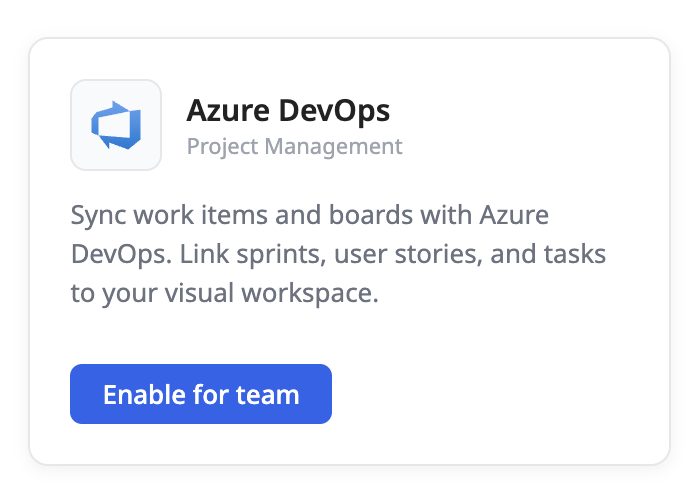
- Team enablement (team owner). The owner turns Azure DevOps on for the team in Team Settings → Apps & Integrations. This makes the integration available to the team.
- Personal connection (each user). Once enabled, every team member who wants to use ADO connects their own Microsoft account from their Profile page. Their ADO permissions decide what they can see and do. Bizby never reuses one person’s access on behalf of someone else.
Getting Started
Section titled “Getting Started”Step 1: Team owner enables for the team
Section titled “Step 1: Team owner enables for the team”- Open Team Settings → Apps & Integrations
- Find the Azure DevOps card
- Click Enable for team
- Confirm. The card now shows “Enabled”.
Step 2: Each user connects their own account
Section titled “Step 2: Each user connects their own account”- Open the Profile dialog (top-right avatar menu)
- Find the Azure DevOps card (only shown when the team has enabled the integration)
- Click Connect
- Sign in with your Microsoft account and grant Bizby access
- If your organization requires admin pre-approval, Bizby shows a link to send to your IT admin
After both steps are complete, you can use Azure DevOps from any board you have access to.
Create a Roadmap from ADO
Section titled “Create a Roadmap from ADO”- On any board, open the menu and choose Azure DevOps (create roadmap)
- Pick an organization and project
- Choose which iterations to include as columns
- Choose whether to roadmap at the Feature level or the Product Backlog Item / User Story level
- Click Create roadmap
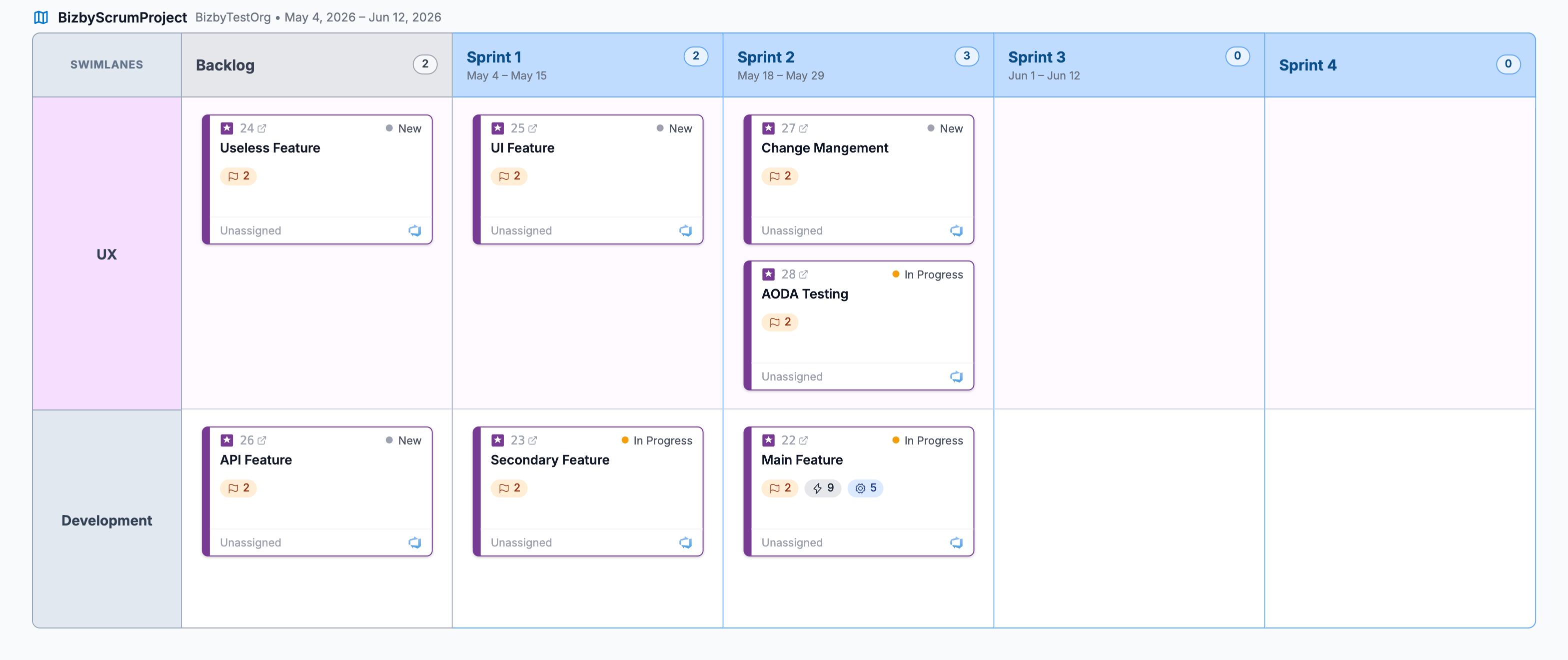
A roadmap appears on the canvas with one column per iteration. Each column contains the work items from that iteration as cards.
Organize with Swimlanes
Section titled “Organize with Swimlanes”Swimlanes are horizontal rows that slice the roadmap so you can group cards across iterations — by team, workstream, epic, owner, or anything you like. Iterations run as columns, swimlanes as rows, and each card sits at the intersection.
- Add a swimlane by hovering the roadmap’s left edge and clicking + Add swimlane. Rename a lane by clicking its label.
- Assign a card to a lane by dragging it into that row; the card stays in its iteration column and moves to the chosen lane.
- Style them from the roadmap’s Settings → Swimlanes tab: show or hide lanes, set the lane background wash, tint cards to match their lane, choose the label alignment, and pick the label text color.
Refresh a Roadmap from ADO
Section titled “Refresh a Roadmap from ADO”Select a roadmap shape on the canvas and click the refresh button in the context toolbar. Bizby pulls the latest from ADO and reconciles:
- New work items become new cards
- Removed items are taken off the roadmap
- Field changes update the existing cards in place
Edit ADO Cards from the Canvas
Section titled “Edit ADO Cards from the Canvas”Open any ADO-linked card to edit its title, state, priority, effort (story points), or iteration on the Details tab. Changes push back to Azure DevOps when you save. Edits use optimistic concurrency, so if someone else updated the same work item in ADO since you opened it, Bizby surfaces a conflict and lets you reconcile.
Notes and Tasks on ADO Cards
Section titled “Notes and Tasks on ADO Cards”Every ADO card also has Notes and Tasks tabs for Bizby-only annotations that live alongside the work item without being pushed to Azure DevOps.
- Notes — A rich text editor (the same one used by Board Notes and Documents) for free-form context, meeting takeaways, or planning conversations attached to the work item. Saves automatically as you type.
- Tasks — A checklist for Bizby-side follow-ups. Each task can be assigned to any board collaborator. Assigning a task emails the assignee with a deep link back to this card on the board (30-second debounce so quick reassignments don’t spam; self-assignments don’t send). Press Enter to add a task quickly; check the box to mark it done; hover for a trash icon.
Annotations are keyed by the ADO work item ID, so they survive deleting and recreating the card on the canvas (e.g., after a Refresh).
Read-Only Roadmaps
Section titled “Read-Only Roadmaps”When you create a roadmap, you can toggle it read-only to lock the ADO data:
- Card field edits (title, state, priority, etc.) are blocked
- Cards can’t be dragged between sprints or reordered
- Notes and Tasks still work
Useful when stakeholders need to layer planning context on top of a roadmap they shouldn’t change — for example, an executive review board that mirrors the dev team’s sprint plan. A small lock pill appears in the roadmap’s title bar so everyone knows ADO writes are off. To unlock, recreate the roadmap.
What Stays Private
Section titled “What Stays Private”- Bizby never reads or writes ADO source code, pipelines, builds, releases, secrets, variables, or service connections
- Each user only sees work items they have permission to see in ADO
- Tokens are encrypted with Cloud KMS before they touch Firestore
Disable for the Team
Section titled “Disable for the Team”If a team owner disables ADO in Team Settings:
- Members stop being able to import work items or refresh roadmaps
- Existing roadmap shapes stay on boards and keep their data; they just stop syncing
- Each member’s personal Microsoft connection is preserved, so re-enabling later does not require everyone to reconnect
Security and Authentication
Section titled “Security and Authentication”Authentication is OAuth 2.0 through Microsoft Entra ID, against the Azure DevOps resource
with offline_access so a connection survives without asking for credentials again. Bizby never
sees or stores an Azure DevOps password, and tokens are held server-side and refreshed
automatically.
Two layers of control:
- The team owner decides whether the organisation may use the integration at all.
- Each person connects their own Microsoft account, and their own Azure DevOps permissions decide what they can see and change. Bizby never reuses one person’s access on behalf of someone else.
The first connection in a tenant needs an administrator to grant consent for Bizby’s scopes; after that any user in the tenant can connect.
Writing Back Safely
Section titled “Writing Back Safely”Edits pushed to Azure DevOps carry the work item’s revision number, so the write is refused if somebody changed the item in Azure DevOps since the board last read it. The change is never applied over the top of theirs.
This matters more than it sounds: a planning tool that silently overwrites the tracker is worse than one that only reads. When a write is refused, refresh the roadmap and try again.
Selecting Work Items
Section titled “Selecting Work Items”Work items come from a preset query or your own WIQL query, bringing back the fields a planning conversation needs: title, type, state, assignee, priority, effort and the link back to the work item.
Limitations
Section titled “Limitations”- Cloud only: Azure DevOps Services. On-premises Azure DevOps Server is not supported.
- One-way live sync via webhooks is not in this release. Pull from ADO via Create Roadmap and Refresh; push edits back per card.
- Admin pre-approval may be required by your tenant’s Cross-Tenant Access Settings. Bizby surfaces the approval link automatically when this happens.
- Bizby is not the system of record. Work items live in Azure DevOps. Deleting a card removes it from the board, not from the tracker.
- Writes cover title, description and state. Reassigning, re-parenting, changing effort or editing custom fields are done in Azure DevOps.
- Bizby notes and tasks do not travel. They are visible to people on the board, not to somebody reading the work item in Azure DevOps. That is deliberate, and it is the reason they are useful: a tracker is a record of committed work, a board is where a team works out what the work is.
- A refresh reads, it does not merge. It brings the current state of the work items in. It does not attempt to reconcile two sets of edits.
- Jira is not currently supported. Azure DevOps is the project-tracking integration Bizby ships. If Jira is a requirement rather than an example, tell us and we will scope it.
Related Features
Section titled “Related Features”- Miro Board Import - Bring a Miro board into Bizby with shapes, connectors, frames, and images
- PowerPoint Import - Drop a
.pptxonto the canvas as a navigable slide deck - Feature Overview - See all Bizby features