 Features / Import & Export
Miro Board Import
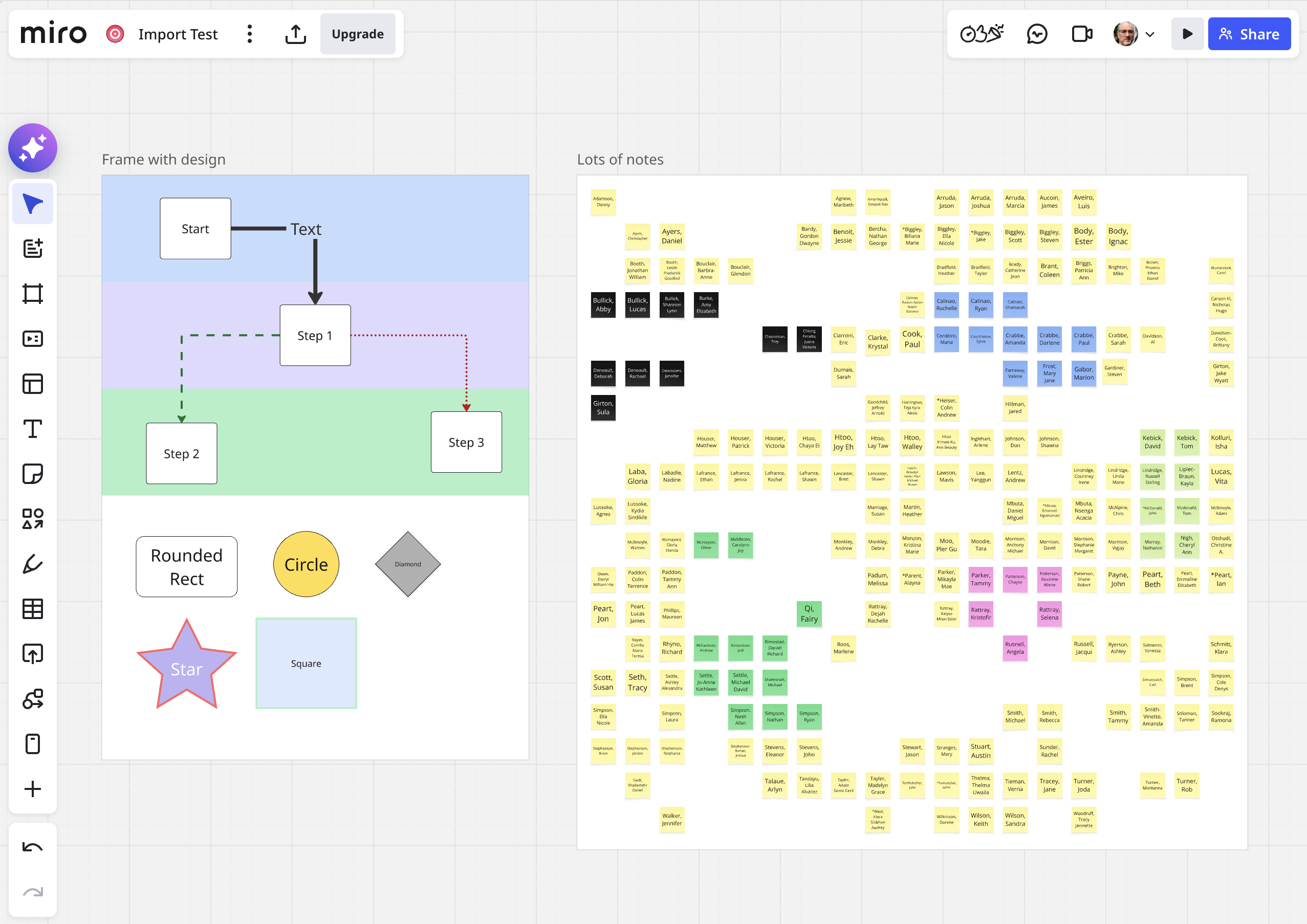
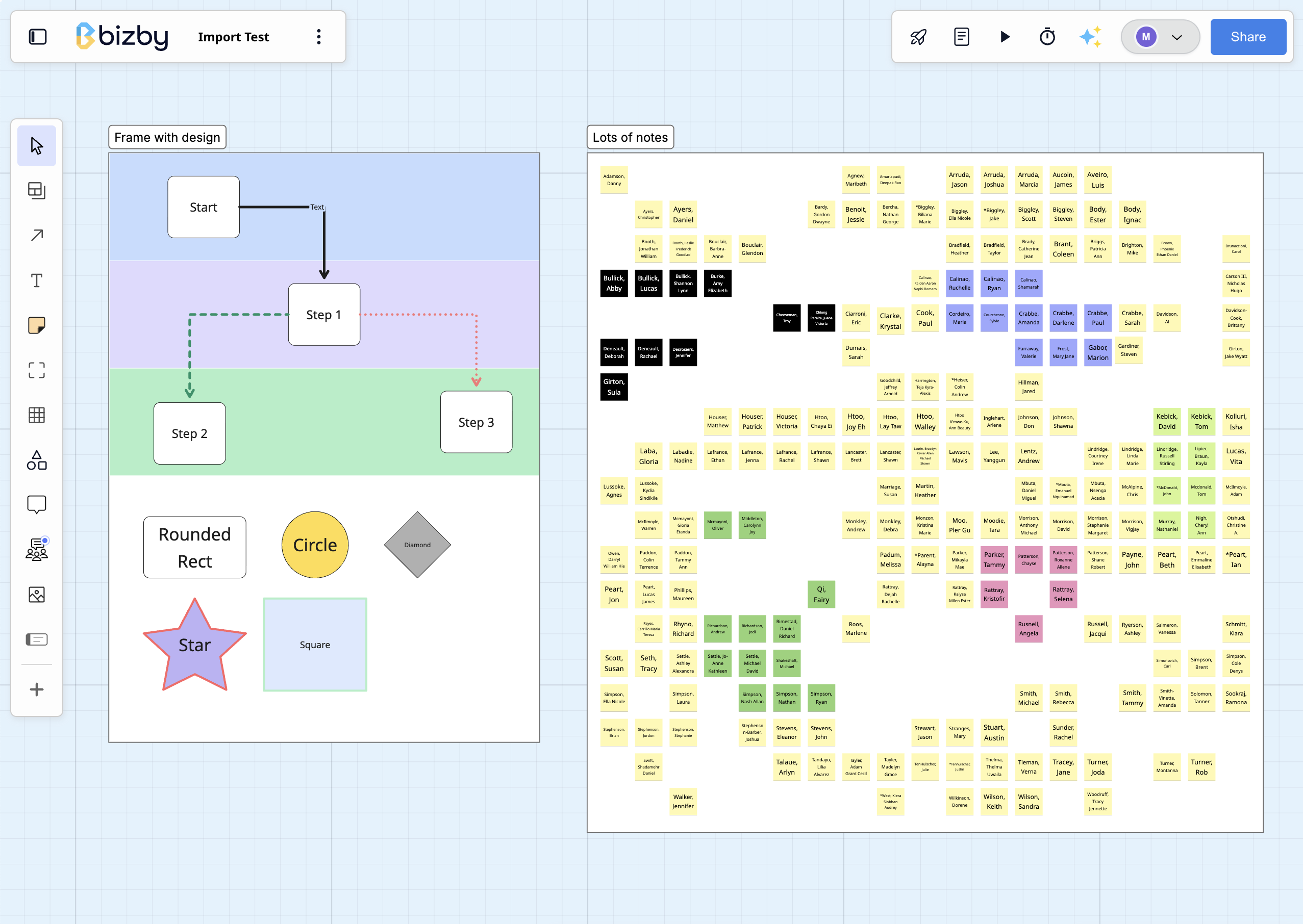
Overview
Section titled “Overview”Bizby now supports importing boards directly from Miro. The import preserves your board layout, shapes, sticky notes, connectors, frames, images, and styling — so you can migrate existing work into Bizby without starting from scratch.
What Gets Imported
Section titled “What Gets Imported”Fully Supported
Section titled “Fully Supported”- Sticky Notes — Colors, text content, and positioning
- Shapes — Rectangles, ellipses, triangles, diamonds, stars with fill colors, borders, and text
- Text Objects — Standalone text with font sizing and alignment
- Frames — Container frames with titles and child relationships
- Images — Full-resolution image assets
- Embeds — Embedded content and bookmarks
- Connectors — Arrows and lines with:
- Edge-accurate connection points (top, bottom, left, right)
- Line styles (solid, dashed, dotted)
- Line colors and thickness
- Arrowhead types
- Elbow, curved, and straight routing
- Label text
Converted to Bizby Features
Section titled “Converted to Bizby Features”- Dot Voting Panels — Imported with correct dot positioning, voter colors, and binding to parent shapes (v1.9.9)
- Widget Stacks — Detected from API order and imported with inferred sizing from child notes (v1.9.9)
- Checklists (doc_format) — Converted to Bizby Documents with interactive task list checkboxes, preserving checked/unchecked state (v1.9.9)
Shown as Placeholders
Section titled “Shown as Placeholders”Cards, mindmap nodes, and kanban cards appear as placeholder rectangles to preserve layout positioning. Miro documents show a placeholder with a hint to use Bizby’s built-in PDF import.
Not Supported
Section titled “Not Supported”- Tables — Miro’s API does not currently expose table cell content. Tables appear as a placeholder rectangle showing where the table was positioned. If you need the table content in Bizby, copy the cell contents into sticky notes or text boxes on the Miro board before importing.
Prerequisites
Section titled “Prerequisites”The Miro to Bizby Import app must be installed on your Miro team before importing. This grants Bizby read-only access to your boards.
Click the link to install => Miro to Bizby Import App
How to Import
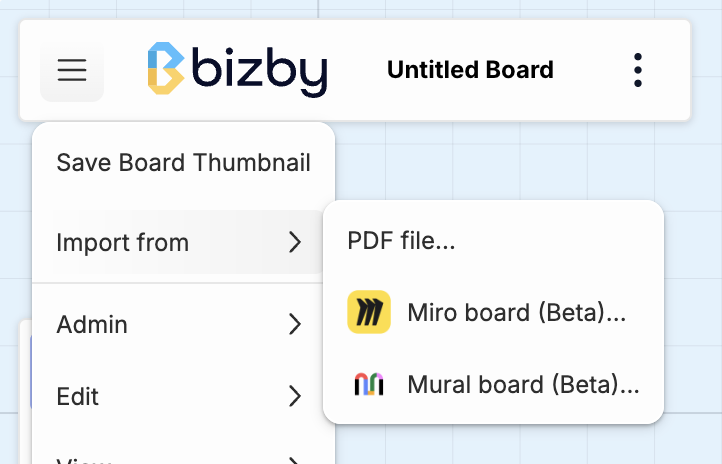
Section titled “How to Import”- Open a Bizby board and click the board settings hamburger menu then select Import from, then Miro board…
- If this is your first import, you’ll be prompted to sign in with Miro via OAuth
- Browse your Miro boards and select one to import
- Review the item count and click Import
- Bizby will fetch all items and connectors, then place them on your board
- The view will automatically zoom to fit the imported content
Connector Edge Detection
Section titled “Connector Edge Detection”Connectors imported from Miro preserve their exact connection points. If a connector is attached to the right edge of a shape in Miro, it will attach to the right edge in Bizby — not just the center.
This applies to all edge positions: top, bottom, left, right, and custom positions along shape edges.
Color & Style Mapping
Section titled “Color & Style Mapping”Miro’s color palette is mapped to Bizby’s closest matching colors. Line styles (solid, dashed, dotted), line thickness, and arrowhead types are preserved during import.
Tips for Best Results
Section titled “Tips for Best Results”Related Features
Section titled “Related Features”- Document Shape — Rich text documents on the canvas (Miro checklists convert to these)
- Arrow Handles — Precision arrow drawing and connection tools
- Custom Colors — Custom hex colors for shapes and notes
- Features — See all Bizby features