 Features / Shapes & Drawing
Arrow Handles
Overview
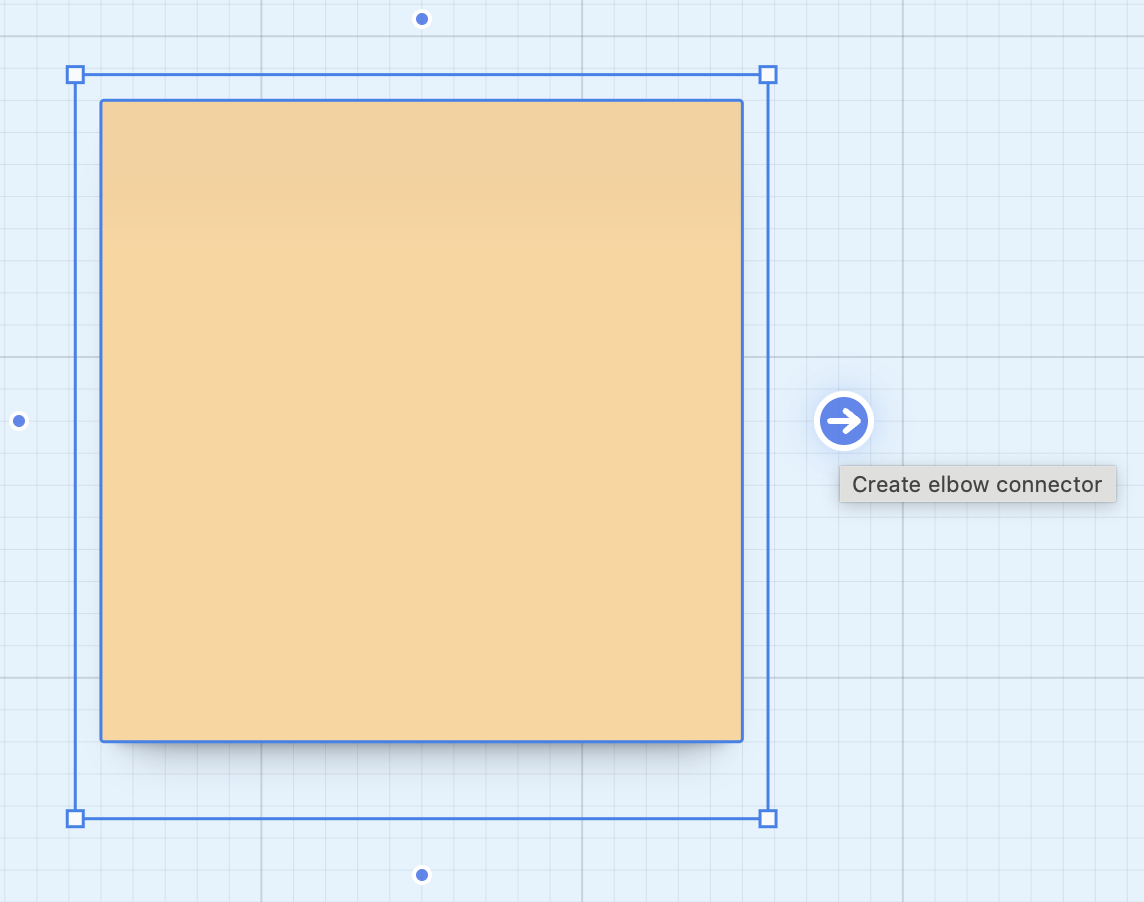
Section titled “Overview”Arrow Handles make it easy to create precise connections between elements on your board. Smart handles appear on shapes and sticky notes, allowing you to quickly draw arrows and connectors for flowcharts, diagrams, and visual relationships.
Key Features
Section titled “Key Features”- Smart Handles - Connection points appear automatically on shapes, sticky notes, and text shapes
- Precise Connections - Arrows snap to handles for perfect alignment
- Multiple Styles - Choose from different arrow styles and line types
- Auto-Routing - Arrows intelligently route around obstacles
- Bi-directional - Create arrows pointing in either direction
How to Use
Section titled “How to Use”- Hover over any shape or sticky note on your board
- Connection handles appear on the edges
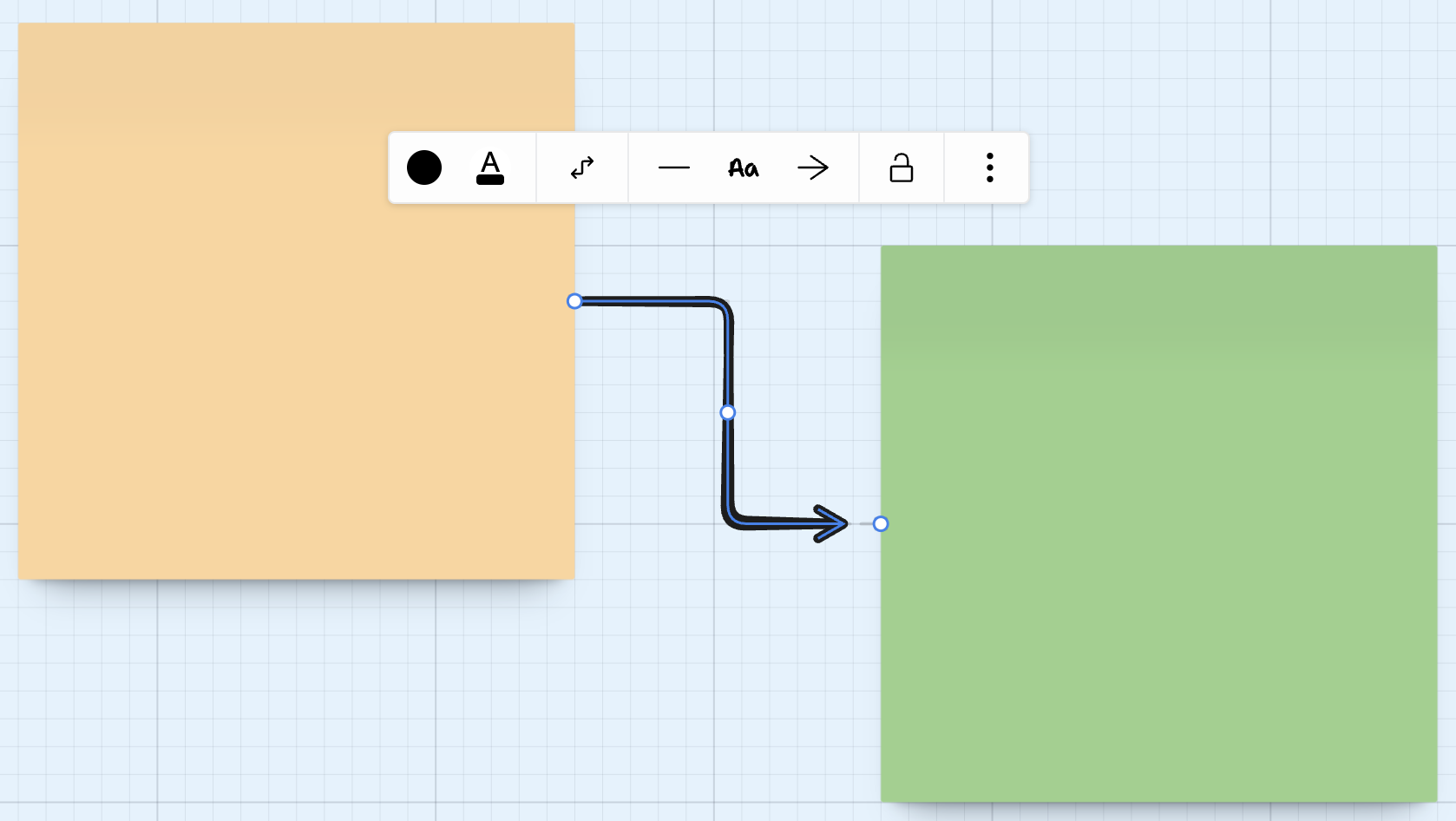
- Click and drag from a handle to another element
- Release to create the connection
- Customize the arrow style and appearance as needed
Benefits
Section titled “Benefits”Clear Visual Relationships
Section titled “Clear Visual Relationships”Show connections, hierarchies, and relationships between ideas and concepts with professional-looking connectors.
Process Flows
Section titled “Process Flows”Create flowcharts and process diagrams with arrows that clearly show the flow from one step to the next.
Mind Maps
Section titled “Mind Maps”Build visual mind maps with arrows connecting related concepts and branching ideas.
Organizational Charts
Section titled “Organizational Charts”Design org charts with arrows showing reporting relationships and team structures.
Use Cases
Section titled “Use Cases”Project Planning
Section titled “Project Planning”Scenario: Team mapping project dependencies
Use arrow handles to connect tasks and show dependencies. Arrows clearly indicate which tasks must be completed before others can begin.
System Design
Section titled “System Design”Scenario: Architect designing system architecture
Connect components with arrows to show data flow, API calls, and system interactions. Auto-routing keeps diagrams clean even with complex connections.
Customer Journeys
Section titled “Customer Journeys”Scenario: UX team mapping user flows
Create customer journey maps with arrows showing the path users take through your product, including decision points and alternative paths.
Best Practices
Section titled “Best Practices”Related Features
Section titled “Related Features”- Custom Colors - Customize arrow colors and styling
- Material Icons - Add icons to enhance your diagrams
- Feature Overview - See all Bizby features