 Features / Canvas & Real-time
Presentation Mode
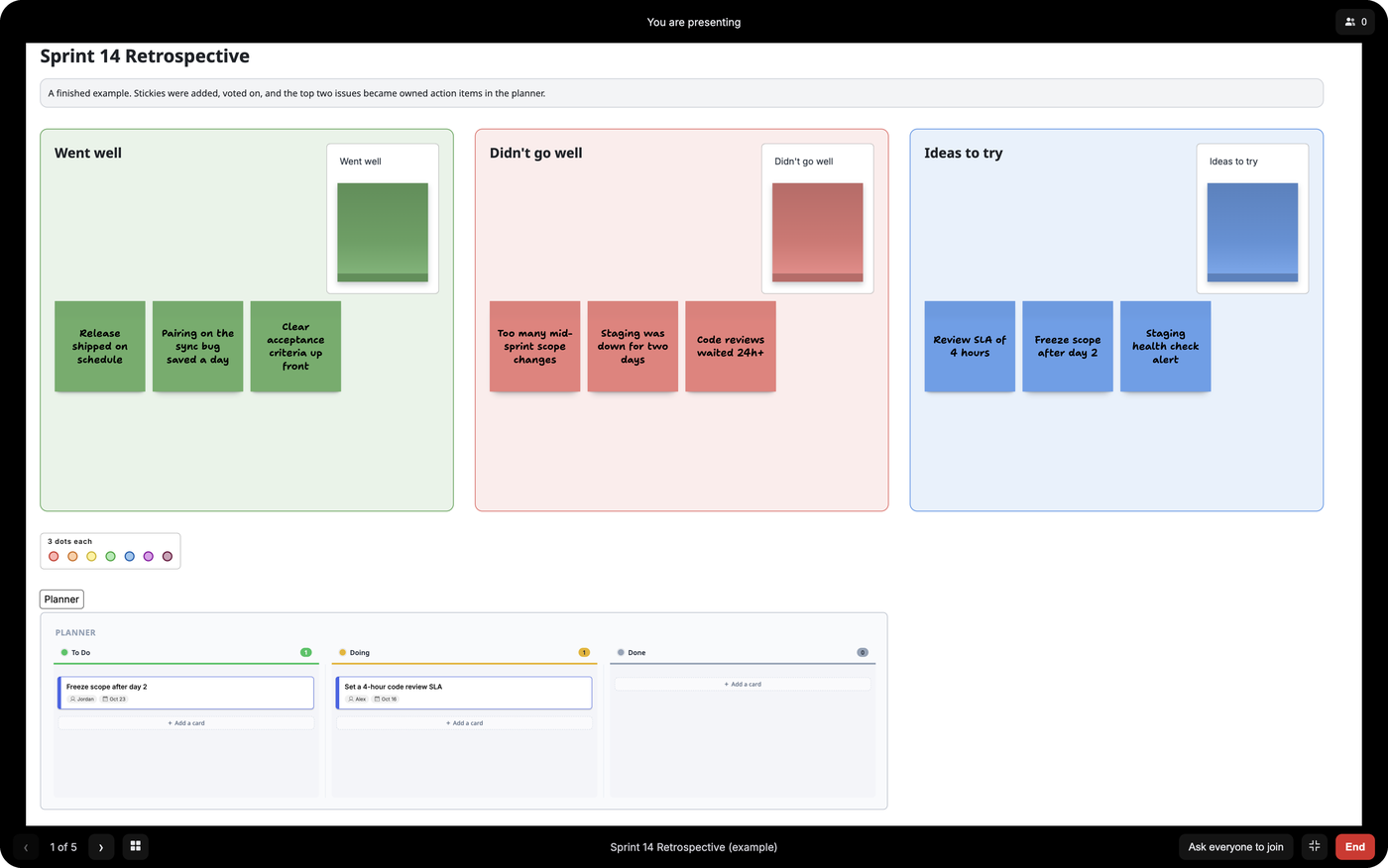
Present a board without leaving it. Each frame is a slide: the one you are on fills the screen, the rest of the board goes dark, and everyone on the board can join and follow you through it.
The board stays live underneath. People following along can still comment, react, stamp and vote on what you are showing.
Build the deck
Section titled “Build the deck”- Draw a frame around each thing you want to show. Name your frames: the names are what you see in the list.
- Click Slide show (the play button in the top bar) to open the Presentation panel. It lists every frame on the board.
- Drag frames to set the order. Click a frame’s name to zoom to it.
- Click the eye beside a frame to leave it out. Hidden frames stay on the board and are only skipped when you present.
The order and the hidden frames are saved with the board, so the next person to present it gets the same deck.
Present
Section titled “Present”Click Present at the bottom of the panel (it shows how many frames are included). Bizby goes full screen and fits the first frame to the view. The controls sit at the bottom of the screen.
| To | Do this |
|---|---|
| Go to the next frame | ›, the right arrow, Page Down or Space |
| Go back a frame | ‹, the left arrow or Page Up |
| Jump to any frame | All slides (the grid button), then pick one |
| Invite people again | Ask everyone to join |
| Leave or return to full screen | The full screen button. Escape also leaves full screen without ending |
| Stop presenting | End, or Escape when you are not in full screen |
The frame name and your position (3 of 8) are always on screen, and a screen reader announces the position as you move.
Following along
Section titled “Following along”When someone starts presenting, everyone else on the board sees “Name is presenting” with Join and Not now. Join, and each frame is fitted to your screen as the presenter moves. The bar shows who you are following and where they are.
Click Leave or press Escape to go back to the board on your own. If you chose Not now, you will be asked again when the presenter clicks Ask everyone to join.
Hand over or take control
Section titled “Hand over or take control”The People button at the top right of a presentation shows who else is on the board.
- Hand over passes the presentation to someone else at the slide you are on, so the room only sees the name at the top change. It is offered for people who can edit the board. Viewers are marked View only, and anyone idle for a minute is marked Away, because handing over to them would leave the room stuck.
- Take control is offered to anyone following along who can edit the board. Use it when a presenter goes quiet, closes their laptop, or hands over and then needs it back.
- Show collaborator cursors turns other people’s cursors on or off while you present.
- Use consistent frame sizes, such as 16:9 slide layouts, so each slide fills the screen the same way.
- Keep a parking-lot or scratch frame on the board and hide it from the deck rather than deleting it.
- Put a poll, dot vote or sticky note stack inside a frame, and people can respond while you present it.
Related Features
Section titled “Related Features”- Slide Layouts for presentation-ready frames
- Real-time Collaboration for how live sync works
- Export for turning frames into a PDF to send afterwards