 Features / Notes & Content
Sticky Note Capture from Phone
Overview
Section titled “Overview”Workshops often start on a physical wall of sticky notes. Sticky Note Capture turns those photos into real Bizby sticky notes — text transcribed, color preserved, ready to organize, summarize, and share. No app install on the phone: just a QR scan from the desktop board.
Key Features
Section titled “Key Features”- Phone capture, no app — Scan a QR with your phone’s camera; the browser handles the rest
- AI text + color extraction — GPT-4o vision reads handwriting and matches each sticky to one of Bizby’s note colors
- Multi-photo upload — Pick several photos from your camera roll, Files, iCloud, or Google Drive; Bizby processes them one at a time
- Live placement — Notes appear on the desktop canvas as each photo finishes processing
- Pan-to-place — Move the desktop canvas to a new spot between photos and the next batch lands there
- Auto-stagger — Multiple uploads in the same session form a tidy row instead of piling on top of each other
- Active session pill — A small countdown pill at the top of the canvas shows session time remaining and “Processing photo…” while the AI is working
How to Use
Section titled “How to Use”- Open a board on your computer
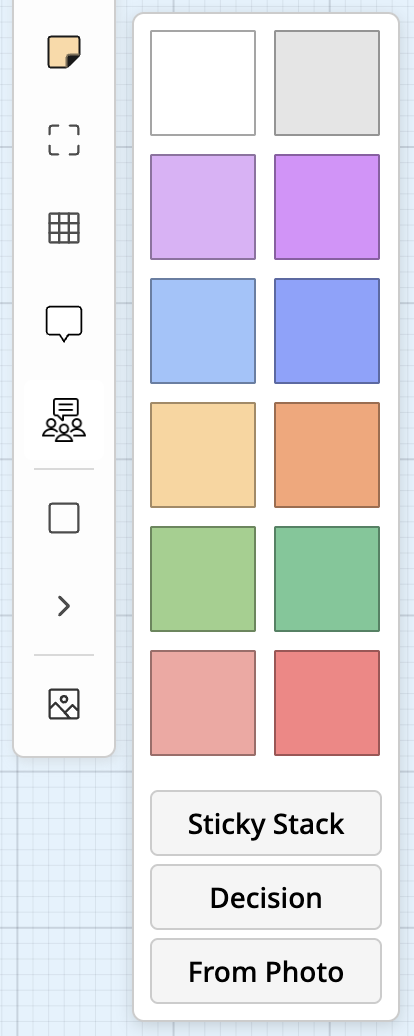
- Click the sticky note tool in the toolbar and choose From Photo
- A modal pops up with a QR code (session lasts 10 minutes)
- Scan the QR with your phone — your phone opens a Bizby capture page
- Tap the big Add a photo button and choose one or more images from your camera, Photo Library, or Files
- Review the preview; tap Add to board to upload
- Sticky notes appear on the desktop canvas as the AI extracts them
- Pan the canvas to a new area and upload more photos — the next batch lands there
Use Cases
Section titled “Use Cases”Workshop Teardown
Section titled “Workshop Teardown”Scenario: Your team just finished a 90-minute design workshop covering three walls in sticky notes. Instead of transcribing them by hand, the facilitator photographs each wall, uploads to the board, and the whole workshop is digitized in minutes.
Async Wall Capture
Section titled “Async Wall Capture”Scenario: A colleague at another location has built a sticky-note diagram on a wall. They scan the QR you sent, photograph the wall, and the notes land directly on your shared board for remote analysis.
Onsite to Online
Section titled “Onsite to Online”Scenario: A client meeting produced a wall of customer-journey stickies. Capture them at the venue and continue collaboration online after travel — no rewriting.
Multi-Photographer Workshops
Section titled “Multi-Photographer Workshops”Scenario: Four people each took photos of different sections of a large board. Each person opens the capture modal on their own computer, gets their own QR, and uploads their section. Each person’s photos land in their own corner of the canvas.
Best Practices
Section titled “Best Practices”How the AI Extracts Notes
Section titled “How the AI Extracts Notes”- The phone downsizes each photo to ~1600px before upload (cuts payload, keeps quality)
- The image goes to Bizby’s vision service hosted in Canada (Azure GPT-4o Canada East, called from Cloud Run Montreal)
- The model returns a JSON list of stickies — each with transcribed text, closest matching Bizby color, and an approximate bounding box
- Bizby lays the stickies out as a clean grid on your canvas
- AI usage counts toward your team’s monthly AI tokens, like other Bizby AI features
Limitations
Section titled “Limitations”- Layout is approximated as a grid, not the photo’s exact spatial arrangement. The bounding boxes from vision aren’t reliable enough to faithfully reproduce affinity clusters yet — we’re evaluating layout preservation for a future release.
- Arrows and connections are not captured in this release. Only sticky notes themselves are extracted.
- Handwriting accuracy depends on photo quality, lighting, and writing legibility. Messy or stylized handwriting may produce typos that you’ll want to clean up after upload.
- Multi-photo placement auto-staggers to the right; for very large boards you may need to rearrange manually.
Privacy
Section titled “Privacy”- Photos travel directly from your phone to Bizby’s worker, then to Bizby’s Canada-hosted AI service for vision extraction
- Image data is not retained after extraction — only the resulting sticky notes are written to your board
- For Canadian-residency teams, all processing stays in Canadian regions
Related Features
Section titled “Related Features”- Sticky Note Stacks - Pull unlimited sticky notes from a single stack
- Affinity Map - Group sticky notes by themes using Bizby AI
- Bizby AI - Summarize sticky notes into themes and action items
- Feature Overview - See all Bizby features