 Features / Board Tools
Board Search & Shape Filtering
Overview
Section titled “Overview”Board Search lets you quickly find, filter, and select shapes across your board. Open the Shapes panel with Cmd+F (Mac) or Ctrl+F (Windows) to see every shape on your board in a searchable, filterable tree view.

Opening the Shapes Panel
Section titled “Opening the Shapes Panel”Press Cmd+F (Mac) or Ctrl+F (Windows) to open the Shapes panel. The panel slides open on the left side of your board.
- Press Cmd+F again to re-focus the search input and select any existing text
- The panel shows all shapes on the current page in a tree structure
- A color-coded badge shows the total shape count with performance thresholds
Searching by Name
Section titled “Searching by Name”Type in the search bar to instantly filter shapes by name. The search matches against shape names, text content, and default type labels.

- Results update as you type
- Multi-line text content is searchable (e.g., searching “high effort” finds a sticky note with “High” on one line and “Effort” on the next)
- Press Escape to clear the search text
- Click the X button to clear the search
Filter by Type
Section titled “Filter by Type”Click the funnel icon next to the search bar to open the type filter dropdown. This shows every shape type on your board with a count of how many exist.
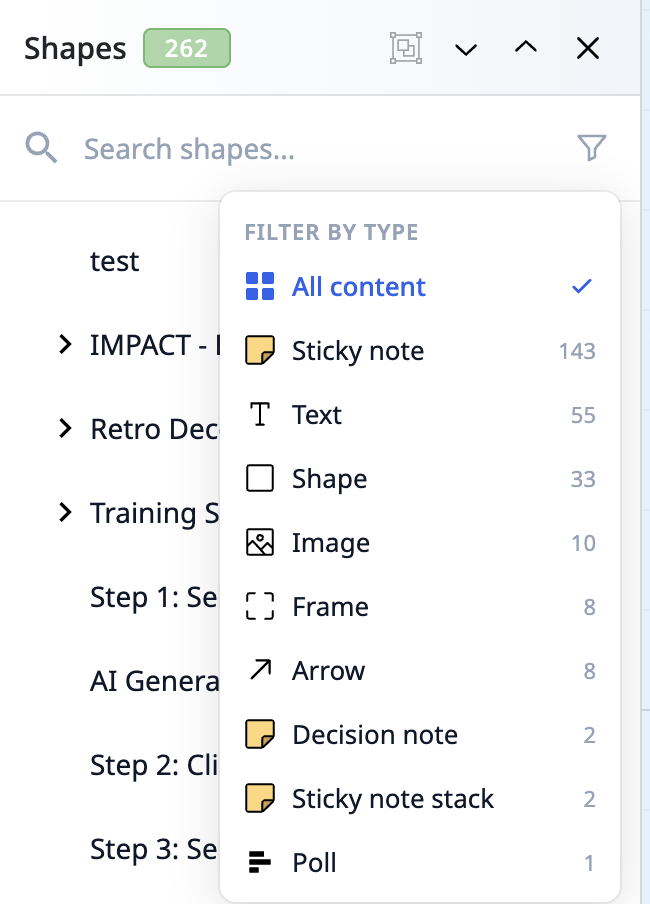
- Select a type to show only shapes of that type (e.g., only sticky notes, only frames)
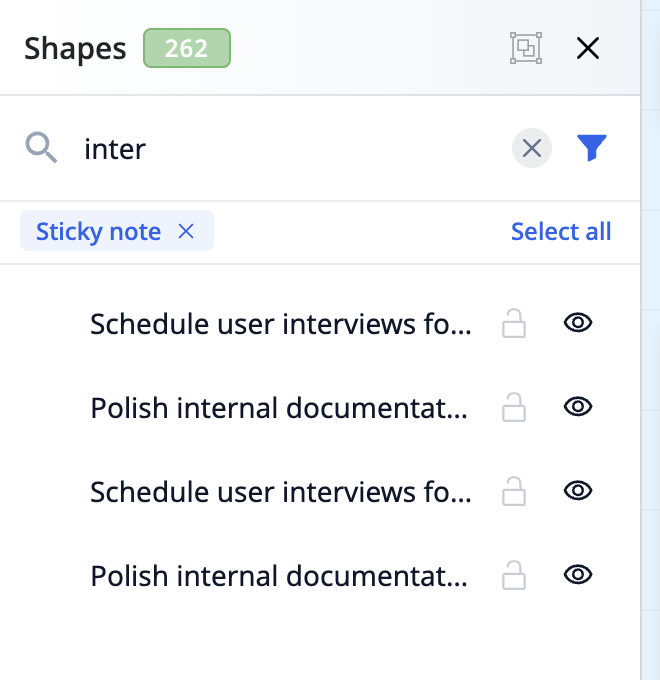
- A filter pill appears below the search bar showing the active filter
- The funnel icon fills in when a filter is active
- Click All content or the X on the filter pill to clear the filter
- Only shape types that exist on your board appear in the list
Combining Search and Filter
Section titled “Combining Search and Filter”Search and type filter work together. For example, you can filter to “Sticky Note” and then search for “inter” to find only sticky notes containing that text.
Select All Filtered Shapes
Section titled “Select All Filtered Shapes”When a type filter is active, a Select all link appears next to the filter pill. Click it to select every shape matching the current filter on the canvas — useful for bulk operations like moving, coloring, or deleting all shapes of a particular type.
Navigating the Shape Tree
Section titled “Navigating the Shape Tree”The Shapes panel displays your board’s shapes in a tree structure that mirrors the board hierarchy.
- Click a shape to select it on the canvas and zoom to it
- Cmd+click or Shift+click to add or remove shapes from your selection
- Expand/collapse frames and groups using the chevron arrow
- Double-click a shape name to rename it
- Lock/unlock shapes using the lock icon
- Show/hide shapes using the visibility icon
Expand and Collapse All
Section titled “Expand and Collapse All”Use the expand all and collapse all buttons in the panel header to open or close every frame and group at once.
Related Features
Section titled “Related Features”- Selection Filters - Filter multi-shape selections from the context toolbar
- Sticky Note Stacks - Create multiple sticky notes
- Board Version Control - Save and restore board states
- Feature Overview - See all Bizby features