 Features / Collaboration
Selection Filters
Overview
Section titled “Overview”When you select multiple shapes on your board, the Selection Filter feature lets you quickly narrow your selection to specific shape types. This makes bulk editing faster and more precise, allowing you to modify only the shapes you want without manually deselecting others.
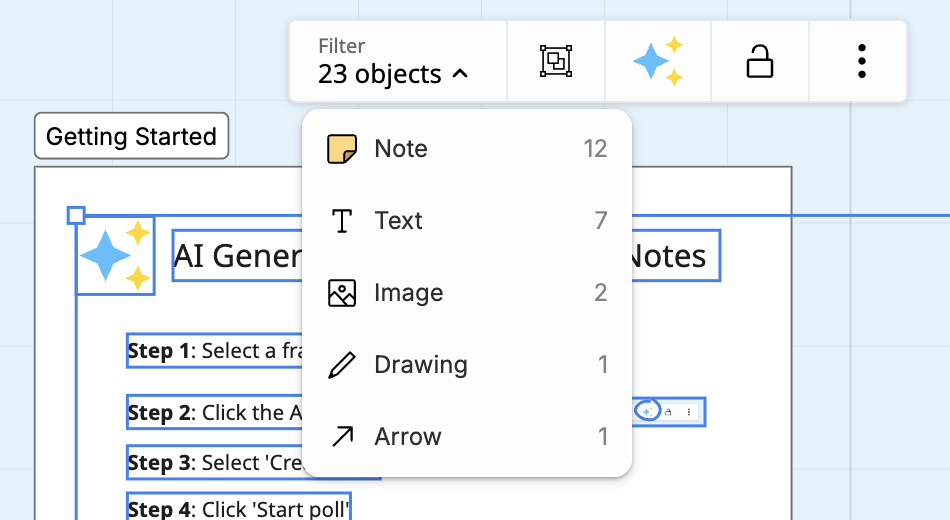
Filter a Frame’s Contents
Section titled “Filter a Frame’s Contents”Select a single frame (or a group) and the same Filter menu appears in the context toolbar, this time listing everything inside that container grouped by shape type. You can act on a whole type at once without hunting for shapes across the canvas.
For each shape type in the list you can:
- Select every shape of that type inside the frame. Hidden shapes are shown first, then selected.
- Show or hide all shapes of that type with the eye toggle. Hidden types stay in the list with a striped tint so you can bring them back anytime.
- Lock or unlock all shapes of that type with the lock toggle.
Hiding or locking a type applies to the shapes themselves, so the state syncs to everyone on the board and survives a reload. This gives you a fast, layers-like way to declutter a busy frame: hide every sticky note to focus on the diagram, or lock the background shapes while you rearrange the rest.
Key Features
Section titled “Key Features”- Type Filtering - Filter by sticky notes, shapes, arrows, text, or other types
- Context Toolbar Access - Filter controls appear automatically when multiple shapes are selected
- Instant Updates - Selection updates immediately when you apply a filter
- Non-Destructive - Original selection is preserved; filters just refine what’s active
How to Use
Section titled “How to Use”- Select multiple shapes on your board (drag to select or Shift+click)
- Look for the filter options in the context toolbar
- Click a filter type to narrow your selection:
- Sticky Notes - Keep only sticky notes selected
- Shapes - Keep only geometric shapes selected
- Arrows - Keep only arrows and connectors selected
- Text - Keep only text objects selected
- Apply your desired edits to the filtered selection
- Click elsewhere to deselect and start fresh
Use Cases
Section titled “Use Cases”Bulk Color Changes
Section titled “Bulk Color Changes”Select an entire section of your board, filter to “Sticky Notes,” then change all sticky note colors at once without affecting shapes or text.
Formatting Text
Section titled “Formatting Text”Select a large area, filter to “Text,” and apply consistent font or size changes to all text objects.
Arrow Styling
Section titled “Arrow Styling”Select a complex diagram, filter to “Arrows,” and update all connector styles uniformly.
Shape Updates
Section titled “Shape Updates”Select mixed content, filter to “Shapes,” and adjust fill colors or borders for all shapes together.
Related Features
Section titled “Related Features”- Custom Colors - Apply colors to filtered selections
- Arrow Handles - Work with arrow connectors
- Sticky Note Stacks - Create multiple sticky notes
- Feature Overview - See all Bizby features