 Features / Import & Export
FigJam Import (Beta)
Overview
Section titled “Overview”You can move an existing FigJam board into Bizby without rebuilding it. Unlike some tools, FigJam doesn’t offer a public board API, so Bizby imports through the free FigJam Export to Bizby plugin — running inside FigJam, it has access to the full plugin data, which means connectors and shapes come across with much higher fidelity.
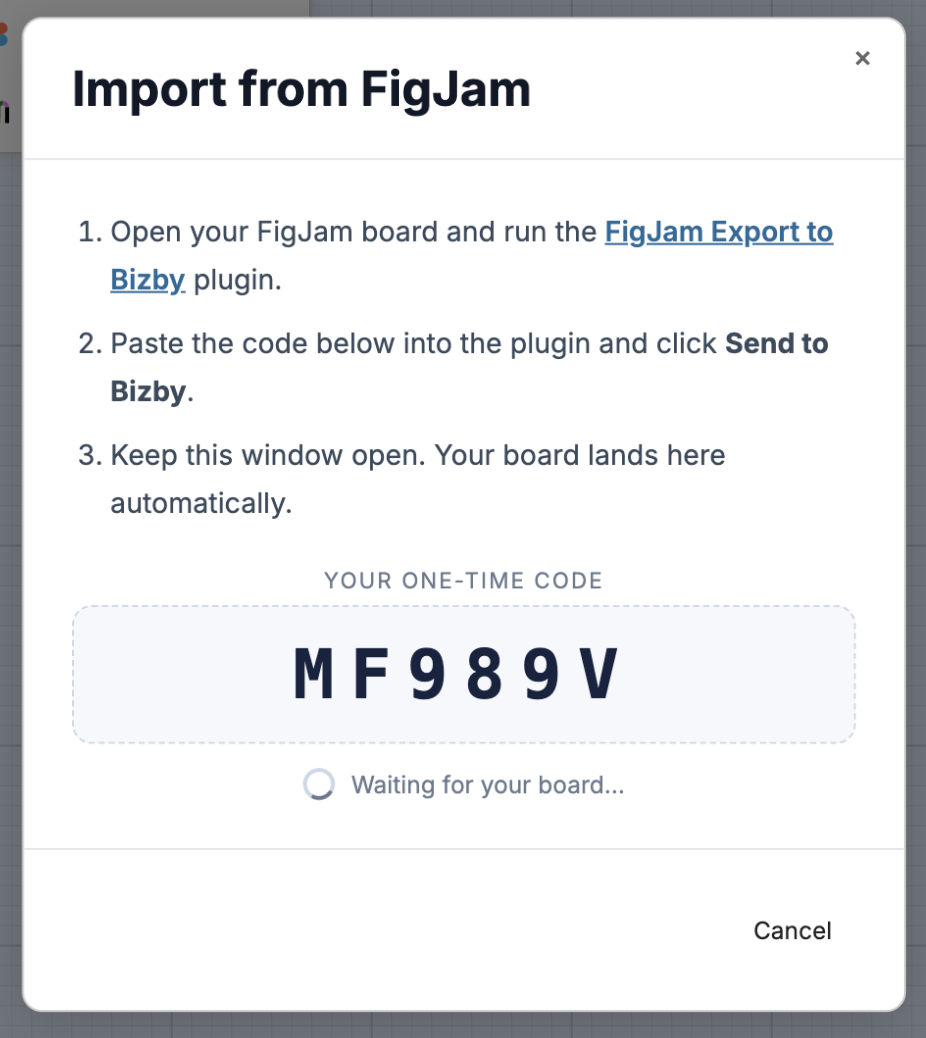
The hand-off uses a one-time code: Bizby shows you a code, you paste it into the plugin, and your board streams straight back into the board you have open.
How to Import
Section titled “How to Import”1. Start the import in Bizby
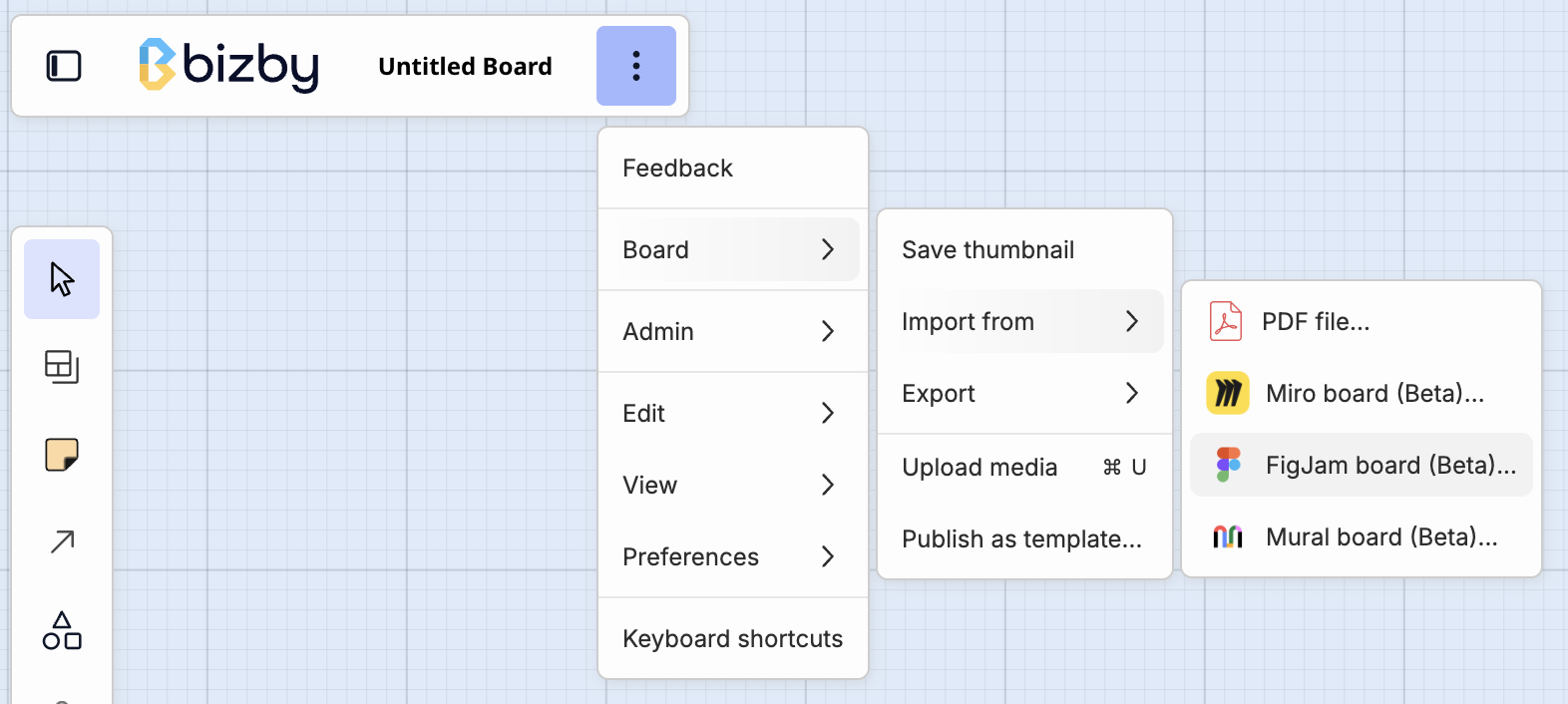
Section titled “1. Start the import in Bizby”Open the board you want to import into, then open the main menu (top-left) → Board → Import from → FigJam board (Beta).
Bizby shows a dialog with a one-time code and waits for your board — keep this window open.
2. Run the plugin in FigJam
Section titled “2. Run the plugin in FigJam”Click the FigJam Export to Bizby link in the Bizby dialog — it opens the plugin in Figma. Open the FigJam board you want to export and click Run.

3. Enter your code and Send to Bizby
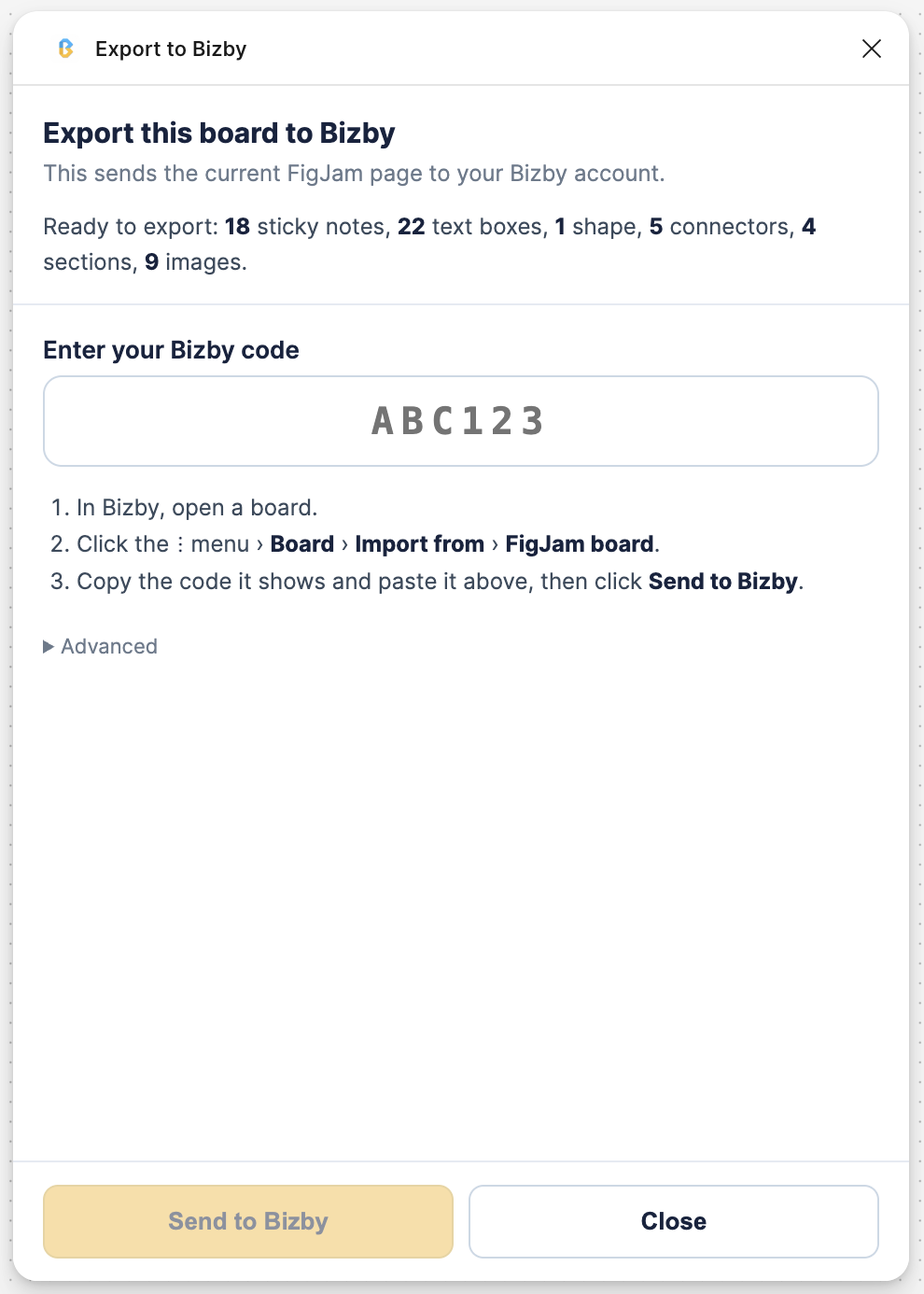
Section titled “3. Enter your code and Send to Bizby”The plugin shows what’s ready to export — sticky notes, text, shapes, connectors, sections, and images. Paste the code from the Bizby dialog and click Send to Bizby.
4. Your board lands in Bizby
Section titled “4. Your board lands in Bizby”Back in Bizby, keep the dialog open — your board streams onto the canvas automatically, and Bizby tells you how many objects and connectors came across.
What Gets Imported
Section titled “What Gets Imported”- Sections — Titled containers with their child content
- Sticky Notes — Text and color
- Text — Standalone text objects
- Shapes — With fill, border, and text
- Connectors — Arrows and lines with their routing, endpoints, and styling
- Lines — Freestanding lines
- Images — Image assets
Objects that don’t have a direct Bizby equivalent are placed to preserve your layout, and the import summary notes anything that was skipped.
Use Cases
Section titled “Use Cases”- Migrating from FigJam — Bring existing workshops, retros, and diagrams into Bizby
- Consolidating tools — Move Figma-team boards onto a Canadian-hosted canvas
- Reusing past work — Import a FigJam board as the starting point for a new session
Related Features
Section titled “Related Features”- Miro Import — Import Miro boards
- Mural Import — Import Mural boards
- Import & Export — See all import options