 Features / Shapes & Drawing
Object Dimensions Display
Overview
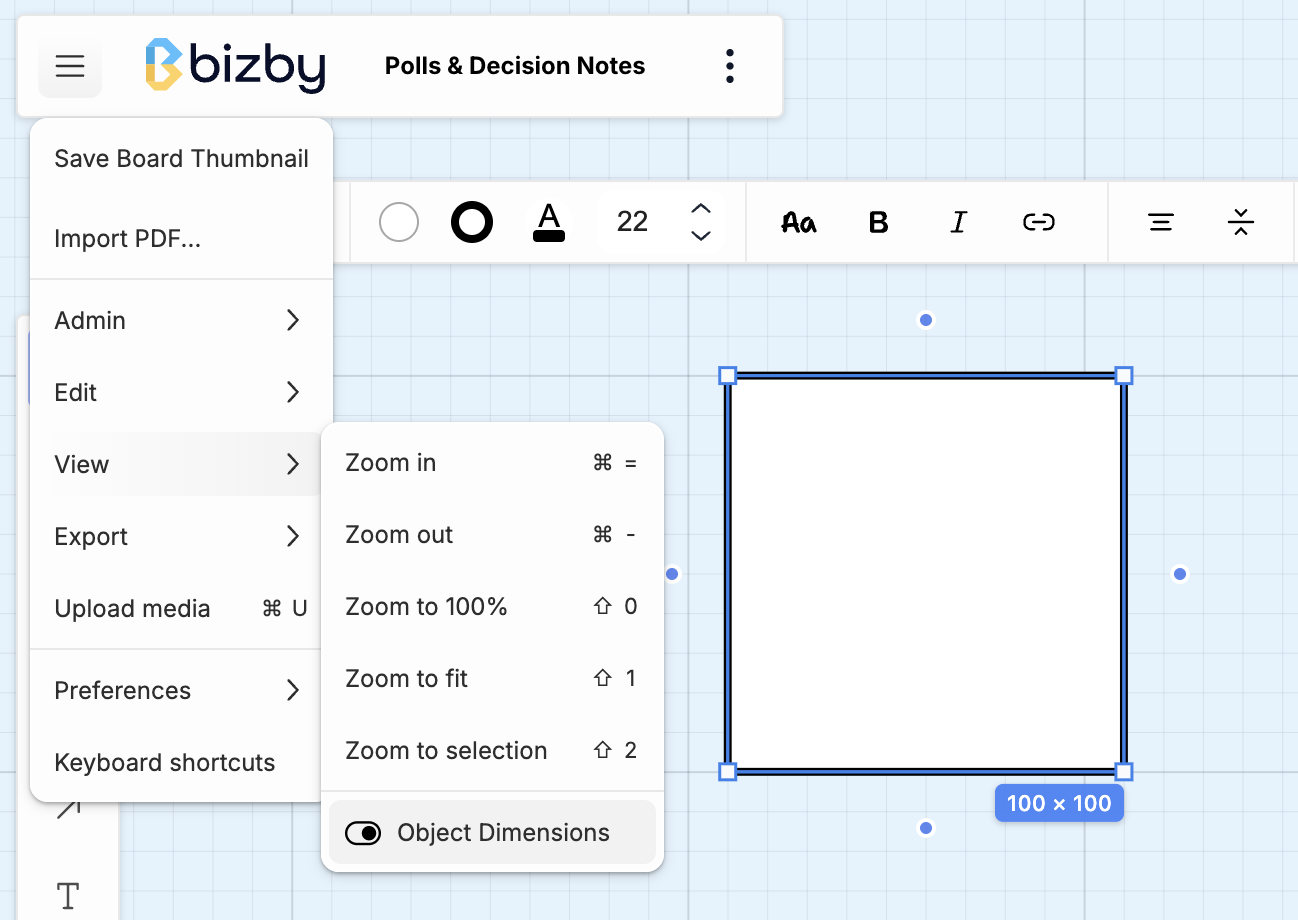
Section titled “Overview”The Object Dimensions feature displays the precise width and height of selected shapes directly on the canvas. This is useful for ensuring consistent sizing across your board elements and for precise layout work.
How It Works
Section titled “How It Works”When enabled, selecting any shape on the canvas displays a small blue badge below the selection showing the dimensions in the format width × height (in pixels).
Supported Shapes
Section titled “Supported Shapes”The dimension badge appears for:
- Geometric shapes (rectangles, circles, triangles, etc.)
- Sticky notes
- Text objects
- Frames
- Images
- Groups (shows combined bounding box dimensions)
Excluded Shapes
Section titled “Excluded Shapes”Dimensions are not shown for:
- Arrows and connectors (as they have variable length based on connections)
Enabling Object Dimensions
Section titled “Enabling Object Dimensions”- Open any board
- Click the hamburger menu (☰) in the top-left corner
- Go to View
- Toggle Object Dimensions on
The setting is saved and persists across your session.
Use Cases
Section titled “Use Cases”Consistent Sizing
Section titled “Consistent Sizing”Ensure all sticky notes or shapes are the same size for a polished, professional look.
Precise Layouts
Section titled “Precise Layouts”When creating templates or structured boards, use dimensions to align and size elements accurately.
Presentation Prep
Section titled “Presentation Prep”Verify that frames and content areas are sized appropriately before presenting.
Related Features
Section titled “Related Features”- Selection Filters - Filter selected shapes by type
- Custom Canvas Settings - Personalize your workspace
Get precise control over your board layouts with real-time dimension feedback.