 Features / AI Features
Bizby in Claude
Connect Claude to Bizby and Claude works with your boards directly, from any Claude conversation: on claude.ai, in the Claude desktop app, or in Claude Code. It can build a board from what you have been discussing, add to a board you already have, find a board by name, read what your team put on it, and revise or undo what it drew.
Nothing arrives as a picture. What Claude builds is native Bizby content (sticky note stacks, planners, process shapes, polls and bound arrows) that your team can move, edit and extend like anything they drew themselves.
What Claude can do with your boards
Section titled “What Claude can do with your boards”| Build | Make a new board, or add a drawing to the board you are on: a retrospective, a flow chart, a story map, a planner, a matrix, a timeline |
| Find and point | Find a board by its name, and use what you have selected on the board when you say “this” or “put it here” |
| Read | Read a board back, including what people wrote, voted for and decided, to summarise a workshop, say which option won, or list the actions and their owners |
| See | Take a picture of a board to check that what it drew looks right |
| Change | Change one part of a drawing it made, revise the whole drawing, undo its last change, or remove it |
| Rebuild from an image | Turn a screenshot of a kanban in Miro, Trello or Jira into a Bizby planner, with its columns, swimlanes, cards and tags. See Move a Miro Kanban into a Bizby Planner |
Claude acts as you: it sees the boards you can see and changes only the boards you can change.
Setting it up
Section titled “Setting it up”1. Turn it on for your team. A team owner opens Team settings → Integrations → Claude connector and enables it. Until then nobody on the team can connect.
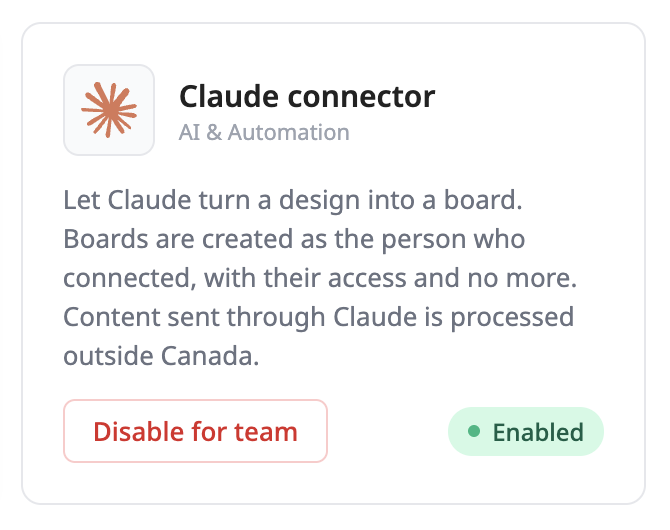
2. Add Bizby in Claude. Find Bizby in Claude’s connector directory under Customize → Connectors, or add it as a custom connector with this address:
https://mcp.bizby.ca/mcpOn a Claude Team or Enterprise plan, a Claude admin may need to add Bizby for the organisation first; each person then connects it. In Claude Code, add it with claude mcp add --transport http bizby https://mcp.bizby.ca/mcp.
3. Authorize it. Click Connect. Claude sends you to Bizby to sign in and approve, and Bizby’s page names Claude, so you know what you are letting in. If your team is not on Team+, or the connector is off, this is where it stops.
What to ask for
Section titled “What to ask for”Talk to Claude the way you would talk to a colleague with access to your boards.
Build
- “Design a sprint retrospective board in Bizby, Went well / Didn’t go well / Actions, with sticky stacks people can add to”
- “Build a flowchart in Bizby for our licence exemption process, with proper process shapes for the decision and database steps”
- “Turn the impact and effort matrix we just worked out into a Bizby board”
Add and change
- “Add a Now / Next / Later planner to my Q3 Planning board for the launch work we just discussed”
- “Put a risks column next to what I have selected”
- “Rename the first step of the flow chart to ‘Offer accepted’”, then “undo that”
Read
- “Summarise what the team put on the sprint 14 retro board, and list the actions with their owners”
- “Which option won the vote on the tooling board?”
- “Group the stickies on my brainstorm board into themes”
Claude already has the context of your conversation, so a board arrives with your actual content in it rather than placeholders, and a summary can go straight into your notes.
Drawings, and what Claude can touch
Section titled “Drawings, and what Claude can touch”Each thing Claude draws is kept as its own drawing. Naming it lets you revise just that piece later, leaving everything else on the board alone, and every change can be undone a step at a time.
Starting from Bizby
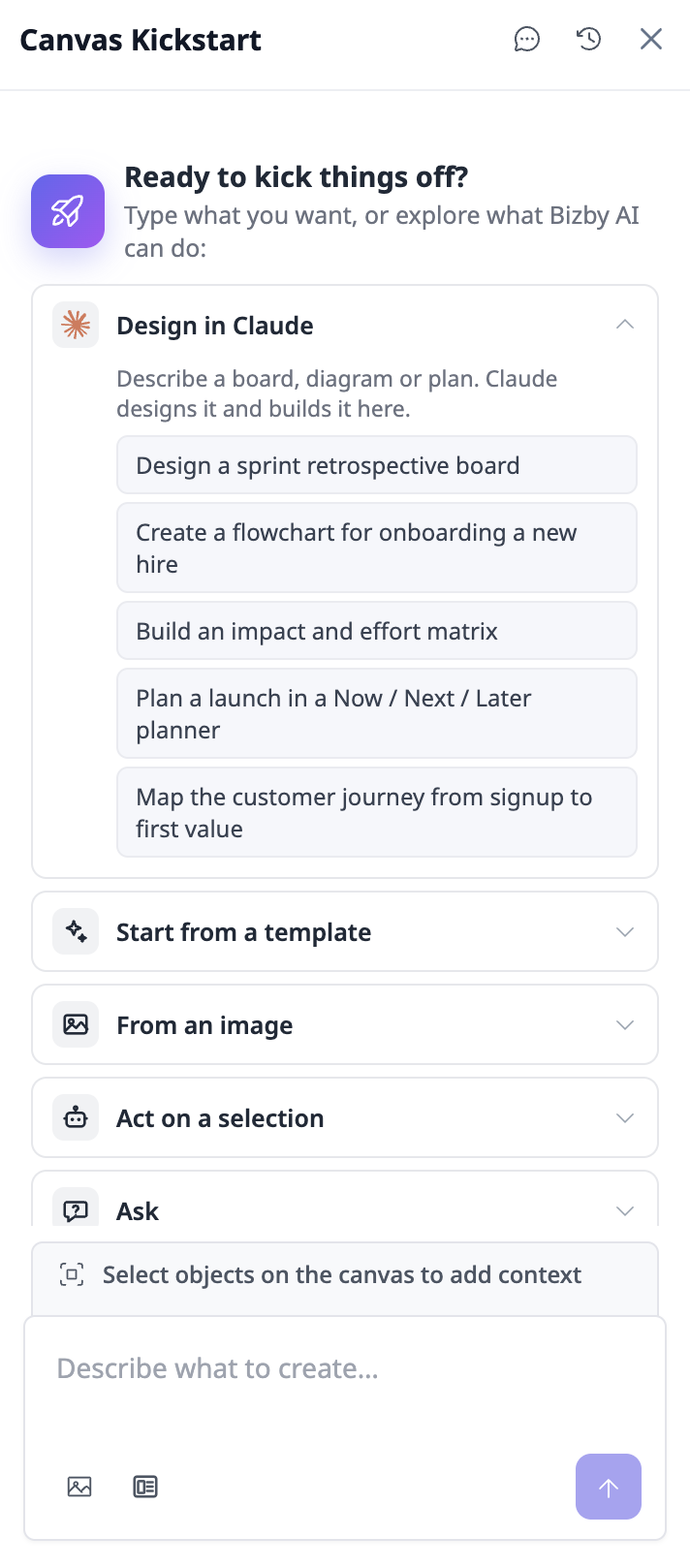
Section titled “Starting from Bizby”You can also start in Bizby. On Team+, open Kickstart on a board and choose a prompt under Design in Claude, or Rebuild from an image. Bizby opens Claude with the prompt and the board’s link, so the result lands on the board you are on.
Limits
Section titled “Limits”To keep an automated loop from running up a bill, each account gets 20 requests a minute, 100 requests a day, and 25 new boards a day, shared across Claude and ChatGPT. Adding to and revising boards keeps working after the board limit is reached. Normal use does not come close to these.
Where the work happens
Section titled “Where the work happens”What Claude reads from a board, and what it builds, is processed by Anthropic, outside Canada. The boards themselves stay on your team’s normal Bizby infrastructure, in Canada, like every other board. If your team requires full Canadian data residency, leave the connector off: Bizby Kickstart builds boards without leaving the country. The privacy policy covers this in section 9.3.
If it is not working
Section titled “If it is not working”| What you see | What it means |
|---|---|
| Bizby refuses at the approval screen | Your team is not on Team+, or the Claude connector is switched off. That is the gate working |
| Claude cannot reach the server | Check the address is exactly https://mcp.bizby.ca/mcp |
| Claude has an old set of tools | Tool lists are cached. Remove the connector in Claude and add it again |
| “You have used today’s…” | A daily limit. It resets at midnight UTC |
To stop Claude working with your boards, disconnect Bizby in Claude. A team owner can switch the Claude connector off for everyone in Team settings → Integrations.
Related
Section titled “Related”- Bizby in ChatGPT for the same connector in ChatGPT
- Move a Miro Kanban into a Bizby Planner
- Bizby Kickstart for building a board without leaving Bizby
- Team+ Plan for what else is on the plan