 Features / Plans & Account
Team+ Plan
Overview
Section titled “Overview”The Team+ Plan expands Bizby’s collaboration capabilities by allowing you to invite unlimited guests to your workspace with fine-grained control over their access levels. Perfect for agencies, consultancies, and organizations that work with external collaborators, clients, or stakeholders.
Key Features
Section titled “Key Features”- Bizby in Claude and Bizby in ChatGPT - Work on your boards from a Claude or ChatGPT conversation: build, revise and summarise them, as native editable shapes. Each is off until a team owner enables it in Team settings
- Unlimited Guest Invitations - Invite as many external collaborators as you need
- Anonymous Share Links - Share a board link with anyone — no account required, with configurable viewer or editor access
- Trash & Board Recovery - Deleted boards are moved to Trash with a 30-day recovery window. Restore accidentally deleted boards or permanently remove them from the profile menu
- Configurable Access Levels - Set precise permissions for each guest
- Board-Level Control - Grant access to specific boards, not your entire workspace
- Flexible Permissions - Choose between view-only or edit access
- Easy Management - Add, remove, and modify guest access at any time
- No Per-Guest Fees - Pay one flat rate regardless of guest count
How to Use
Section titled “How to Use”Sharing with a Public Link (No Account Required)
Section titled “Sharing with a Public Link (No Account Required)”Team+ boards can be shared with anyone using a public share link. Recipients can access the board without creating a Bizby account.
- Open the board you want to share
- Click the Share button in the top toolbar
- Set the share link access level:
- Viewer — Anyone with the link can view the board
- Editor — Anyone with the link can view and edit the board
- No access — Disables the share link
- Click Copy Share Link and send it to anyone
This is ideal for sharing boards with large audiences, embedding in presentations or emails, or providing quick access to stakeholders and collaborators who don’t need a Bizby account.
Inviting Guests (Account Required)
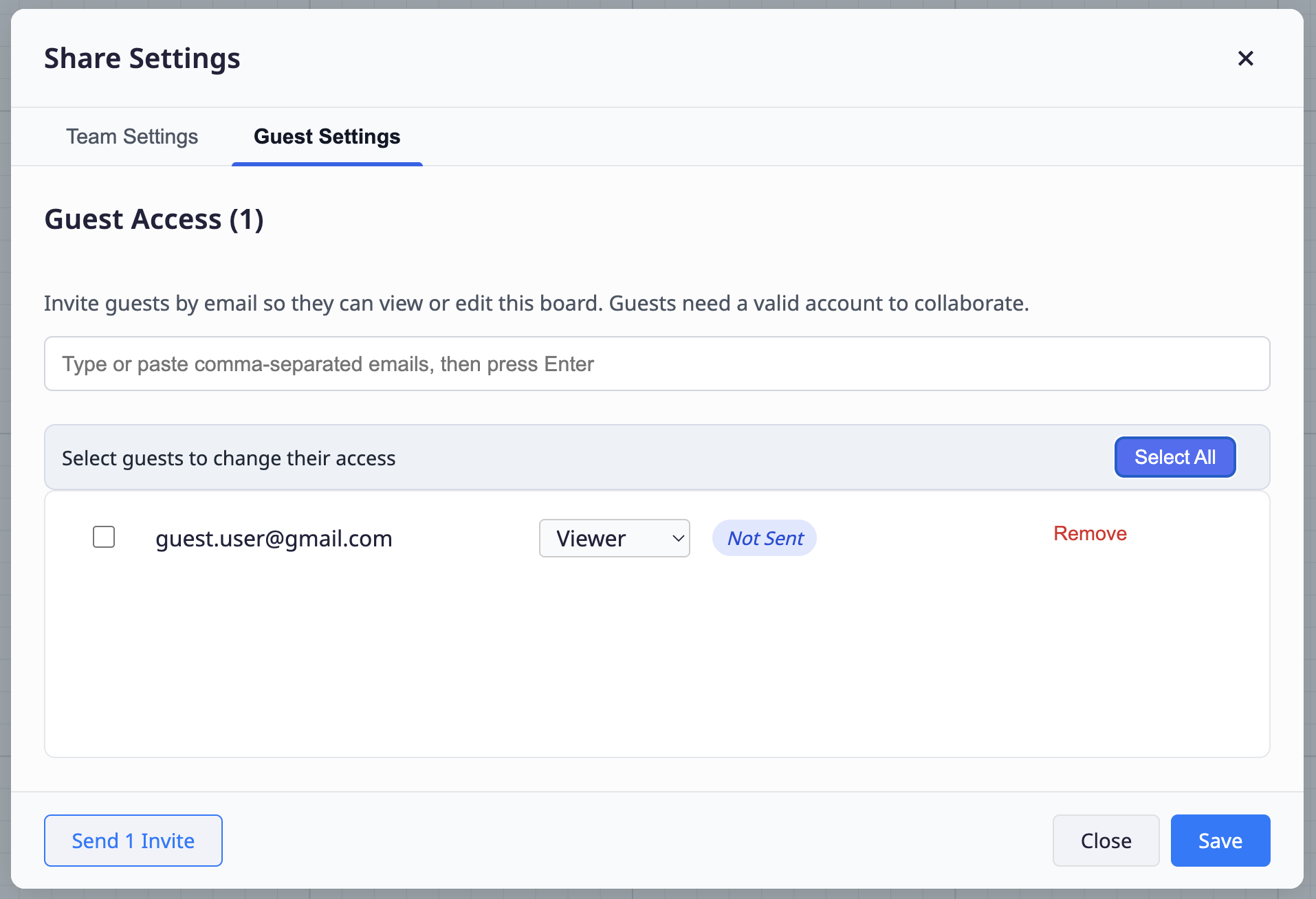
Section titled “Inviting Guests (Account Required)”For collaborators who need edit access or ongoing involvement, invite them by email. The share dialog clearly separates public share links from team and guest invite links.
- Open the board you want to share
- Click the Share button in the top toolbar
- Under Invite, enter the guest’s email address (or paste multiple emails from Excel)
- Select their access level:
- View Only - Can see the board but cannot make changes
- Can Edit - Full editing capabilities on the board
- Click Send Invite
- Guest receives an email with access instructions
Bulk Invite Tip: You can copy and paste large email lists directly from Excel or spreadsheets.
Managing Guest Access
Section titled “Managing Guest Access”- Open any shared board
- Click Share to view current collaborators
- Find the guest in the collaborator list
- Click the permissions dropdown to modify access
- Or click Remove to revoke access entirely
Access Levels Explained
Section titled “Access Levels Explained”View Only
Section titled “View Only”Best For:
- Stakeholders who need visibility but not input
- Final presentation boards
- Read-only documentation
- Status dashboards
Capabilities:
- View all board content
- Zoom and navigate
- Export boards (if enabled)
Limitations:
- Cannot add, edit, or delete elements
- Cannot add comments
- Cannot invite others
Can Edit
Section titled “Can Edit”Best For:
- Active project collaborators
- Co-creators and team members
- Workshop participants
- Brainstorming sessions
Capabilities:
- Full board editing rights
- Add, modify, and delete elements
- Add comments
- Use all board features
Limitations:
- Cannot change board settings (owner only)
- Cannot invite others (unless given permission)
- Cannot delete the board
Use Cases
Section titled “Use Cases”Consultant Engagements
Section titled “Consultant Engagements”Scenario: Management consultant working with enterprise client
- Invite unlimited client stakeholders as guests
- Share strategy boards with View Only for executives
- Give Can Edit access to working team members
- Maintain separate boards for internal vs client-facing work
Educational Settings
Section titled “Educational Settings”Scenario: Teacher using Bizby for classroom collaboration
- Invite students as guests to assignment boards
- Give Can Edit access for group projects
- Use View Only for reference materials
- Track student contributions on shared boards
External Workshops
Section titled “External Workshops”Scenario: Facilitator running workshops for different companies
- Invite workshop participants as guests
- No ongoing subscription cost for attendees
- Full collaboration during sessions
- Remove access after workshop concludes
Benefits of Team+ Plan
Section titled “Benefits of Team+ Plan”Cost Effective
Section titled “Cost Effective”Pay one flat rate regardless of how many guests you invite. Perfect for organizations with fluctuating collaboration needs.
Secure Collaboration
Section titled “Secure Collaboration”Control exactly what each guest can see and do. Board-level sharing means guests only access what they need.
Simplified Onboarding
Section titled “Simplified Onboarding”Guests don’t need to create accounts or subscribe. They receive an invitation and can start collaborating immediately.
Security and Privacy
Section titled “Security and Privacy”Data Protection
Section titled “Data Protection”- Guests only see boards they’re explicitly invited to
- Cannot browse your workspace or discover other boards
- Board-level encryption protects sensitive information
Access Control
Section titled “Access Control”- Board owners control all guest permissions
- Owners can revoke access instantly
- Access expires when board is deleted
- Guests cannot invite additional users
Common Questions
Section titled “Common Questions”Q: How many guests can I invite? A: Unlimited! The Team+ Plan has no cap on guest invitations.
Q: Do guests need to pay for Bizby? A: No, guests can access shared boards at no cost. Only the Team+ subscriber pays.
Q: Do people need an account to access a shared board? A: No. Anyone with a Team+ board share link can access the board without creating an account. The board owner controls whether the link grants viewer or editor access.
Q: Can guests invite other guests? A: No, only board owners and team members with appropriate permissions can invite guests.
Q: Do guests count toward my team member limit? A: No, guests are separate from team members and don’t count toward your team member quota.
Q: What’s the difference between a share link and a guest invite? A: A share link gives anyone anonymous access — no account needed. The board owner sets whether the link grants viewer or editor access. A guest invite sends an email invitation with per-user permissions and requires the recipient to have or create a Bizby account.
Related Features
Section titled “Related Features”- Board Version Control - Track changes made by guests with version history
- Custom Canvas Settings - Customize boards for client presentations
- Feature Overview - See all Bizby features