 Features / Import & Export
Move a Miro Kanban into a Bizby Planner
This guide moves a kanban or roadmap from Miro into a Bizby planner, using Claude and the Bizby connector. The planner keeps the board’s columns, swimlanes and cards, with each card’s status, estimate, assignee, tags and description.
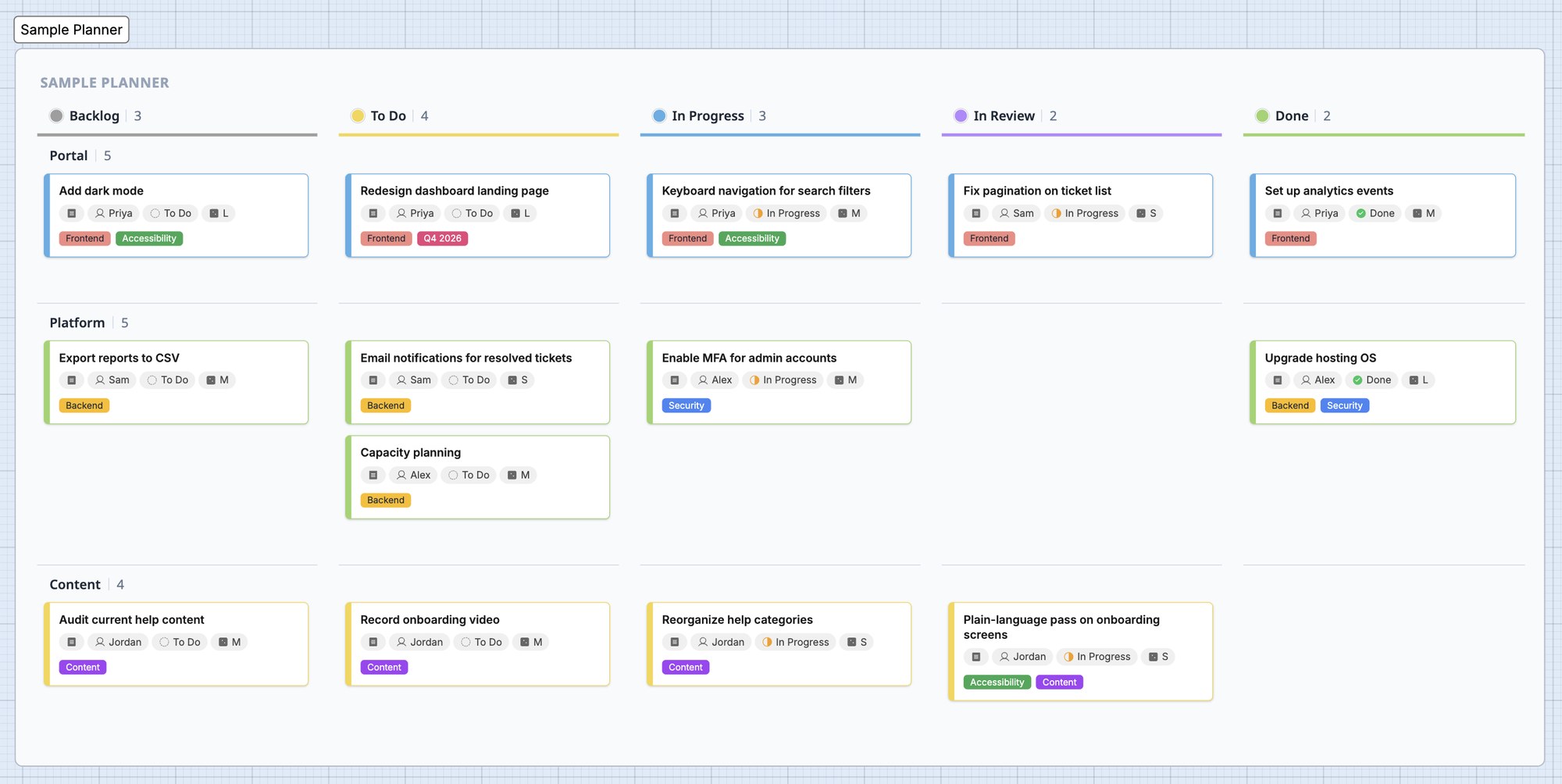
Claude does the move for you through the Bizby connector, in two passes:
- A screenshot of the board. Claude reads it and builds the planner: columns in their colours, swimlanes, and every card in its place with its status, estimate, assignee, tags and colour.
- Miro’s export of the board. A card’s description isn’t visible in a screenshot, so Claude reads the export and fills in each card’s description, matching the export’s rows to the cards by title.
Step 1: Rebuild the board from a screenshot
Section titled “Step 1: Rebuild the board from a screenshot”Take a screenshot of the kanban in Miro. Zoom so the card text and the small chips on each card (status, size, tags) are easy to read: Claude can only rebuild what it can see.
Then either:
- From Bizby: open Kickstart, expand Design in Claude and choose Rebuild from an image. Pick the screenshot and send. Kickstart opens Claude with the instructions and this board’s link, and copies the screenshot. Paste it into Claude (Ctrl+V, or ⌘V on a Mac) and send.
- From Claude: paste the screenshot into a conversation and ask, for example:
“Rebuild this Miro kanban as a Bizby planner on https://bizby.ca/board/… with its columns, swimlanes, and each card’s status, estimate, assignee and tags.”
Claude builds one planner:
| From the screenshot | In the planner |
|---|---|
| Columns, left to right, in their colours | Planner columns |
| Rows with titles (for example Portal, Platform) | Swimlanes, each card in its lane |
| Card titles, exactly as written | Card titles |
| A status chip (To do, In progress, Done) | The card’s status |
| A size chip (S, M, L) | The card’s estimate |
| A person’s name or avatar | The card’s assignee |
| Coloured label chips (Frontend, Q4 2026) | Board tags, in the chip’s colour |
| The card’s border colour | The card’s accent colour |
Tags join your board’s tag list. A tag the board already has, with the same name, is reused rather than duplicated.
Step 2: Add the descriptions from Miro’s export
Section titled “Step 2: Add the descriptions from Miro’s export”Export the board from Miro as a CSV or Excel file. The export lists each card with its title and the description you can’t see on the board.
In the same Claude conversation, attach the file and ask, for example:
“Add the descriptions from this export to the cards in the Roadmap planner. Match each row to its card by title.”
Claude matches the rows to the cards and updates the planner in place. Nothing else on the board changes, and cards whose description was empty in Miro are left as they are. In one migration of a product roadmap with three lanes and seven columns, 36 cards had a description in Miro’s export, and all 36 carried it across.
You can ask for anything else the export holds in the same way, for example due dates or owners.
Check the result
Section titled “Check the result”When Claude finishes, it tells you what it built and the drawing’s id. Look over the planner:
- Count the cards in each column against Miro. The column and lane counts are in the planner’s headers.
- Filter by tag, assignee or status to spot a card that came across without one.
- Fix anything small on the card itself, or ask Claude to revise the planner. Naming the drawing id revises just that planner and leaves the rest of the board alone.
Other ways in from Miro
Section titled “Other ways in from Miro”- Miro Board Import copies a whole Miro board as it looks: shapes, connectors, frames, images, and Miro cards as Bizby cards. Use it to bring an entire board across as it is; use this guide when you want a kanban as a Bizby planner.
- Sticky notes on a wall or table: use Sticky Note Capture from the sticky note menu. Photograph the notes with your phone and each one becomes a sticky note on the board.