 Features / Collaboration
Grid Component
Overview
Section titled “Overview”The Grid component lets you create structured tables and grids directly on your Bizby canvas. Use it for project tracking, decision matrices, comparison charts, or any layout that benefits from rows and columns.
Key Features
Section titled “Key Features”- Flexible Sizing - Add or remove rows and columns, resize by dragging borders
- Cell Formatting - Background colors, text color, font size, bold, italic, and text alignment per cell
- Border Customization - Choose border color, thickness, dash style, and corner radius for the entire grid
- Shape Containers - Drag sticky notes, images, shapes, and cards into grid cells
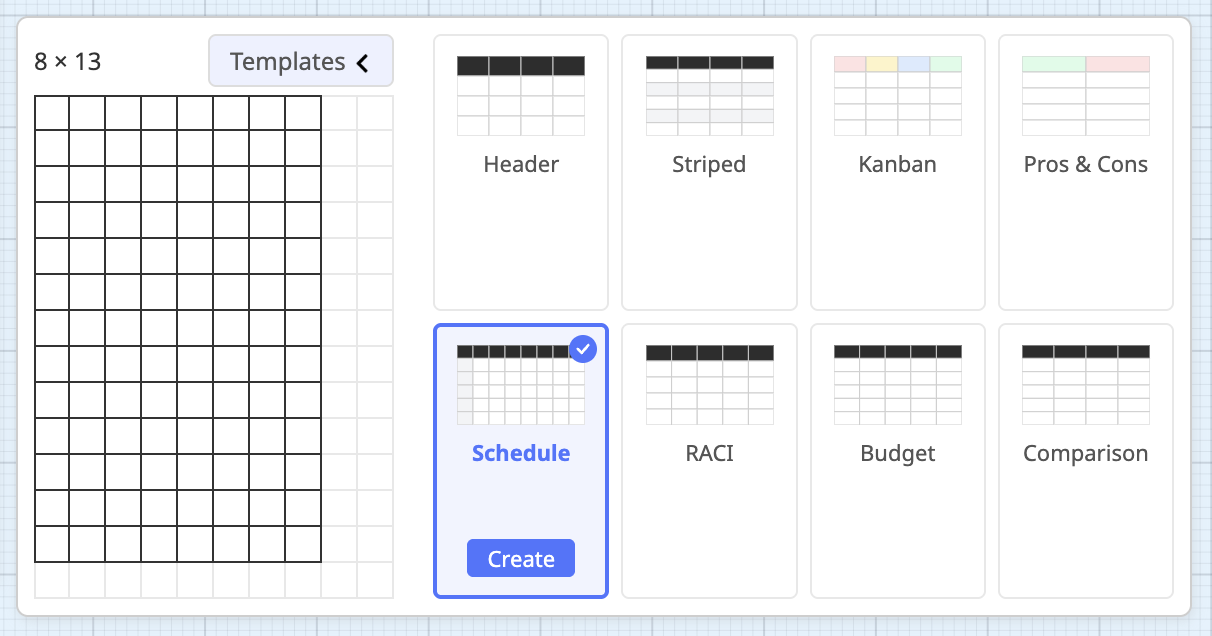
- Built-in Templates - Start from RACI, SWOT, Budget, or Comparison templates, or create a blank grid
- Cell Selection - Click individual cells or drag to select ranges for bulk formatting
- Real-time Collaboration - Multiple users can edit the same grid simultaneously
How to Use
Section titled “How to Use”- Click the Grid option from the toolbar on an active board
- Choose a template or start with a blank grid
- Click any cell to edit its text
- Use the + buttons on the edges to add rows or columns
- Drag column or row borders to resize
- Select cells and use the context toolbar to apply formatting
Templates
Section titled “Templates”| Template | Description |
|---|---|
| Blank | Empty grid, customize from scratch |
| RACI | Responsibility assignment matrix with role columns |
| SWOT | Strengths, Weaknesses, Opportunities, Threats quadrant |
| Budget | Budget tracking with category, planned, actual, and variance columns |
| Comparison | Side-by-side comparison with criteria rows |
Cell Formatting
Section titled “Cell Formatting”Select one or more cells to access formatting options in the context toolbar:
- Background Color - Apply any palette color or custom hex
- Text Color - Change text color per cell
- Font Size - Small, medium, or large text
- Bold / Italic - Toggle font weight and style
- Text Alignment - Left, center, or right align cell content
Dragging Shapes into Cells
Section titled “Dragging Shapes into Cells”You can drag compatible shapes (sticky notes, images, text, cards, geo shapes) into grid cells. The shape will be bound to the cell and move with it when the grid is rearranged. Drag a shape out of the grid to unbind it.
- Use the three-dot menu on row/column headers for quick insert and delete actions
- Lock the grid to prevent accidental edits during presentations
- Grids support copy/paste of cell content
- Large grids (20x20+) are fully supported with optimized rendering
Related Features
Section titled “Related Features”- Interactive Poll Component - Create polls for team voting
- Questions - Word cloud, yes/no, rating, and priority matrix questions
- Sticky Note Stacks - Quick note creation for brainstorming