 Features / Icons
Icon Color Picker
Overview
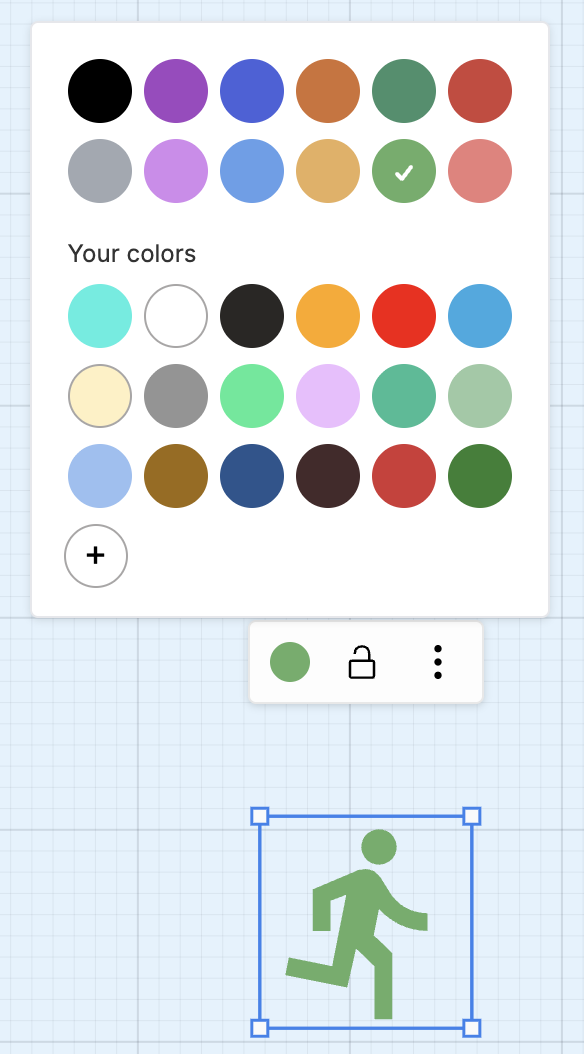
Section titled “Overview”You can now customize the color of material icons directly from the context toolbar. Select any icon on your board and use the color dropdown to apply palette colors or enter custom hex values for precise color matching.
Key Features
Section titled “Key Features”- Palette Colors - Quick access to preset color options
- Custom Hex Values - Enter any hex code for exact color matching
- Recent Colors - Easily reuse colors you’ve used before
- Instant Preview - See color changes in real-time
How to Use
Section titled “How to Use”- Select a material icon on your board
- Look for the color dropdown in the context toolbar
- Choose from:
- Palette colors - Click any preset color
- Custom hex - Enter a hex code (e.g., #FF5733)
- Recent colors - Select from your color history
- The icon updates immediately with your chosen color
Use Cases
Section titled “Use Cases”Brand Consistency
Section titled “Brand Consistency”Match icons to your company’s brand colors by entering exact hex values.
Visual Hierarchy
Section titled “Visual Hierarchy”Use different colors to create visual groupings and indicate relationships between concepts.
Status Indication
Section titled “Status Indication”Apply colors to convey status:
- Green for complete or positive
- Yellow for in-progress or caution
- Red for urgent or blocked
Related Features
Section titled “Related Features”- Material Icons Library - Access the icon library
- Expanded Icon Libraries - Additional icon collections
- Custom Colors - Color customization for all shapes
- Feature Overview - See all Bizby features